Edition guidance updated 28 October 2026 for 0.3.45. Earlier instructions described 0.3.14. This remains a hypothetical staging procedure, not a claim that these tests ran on your installation.
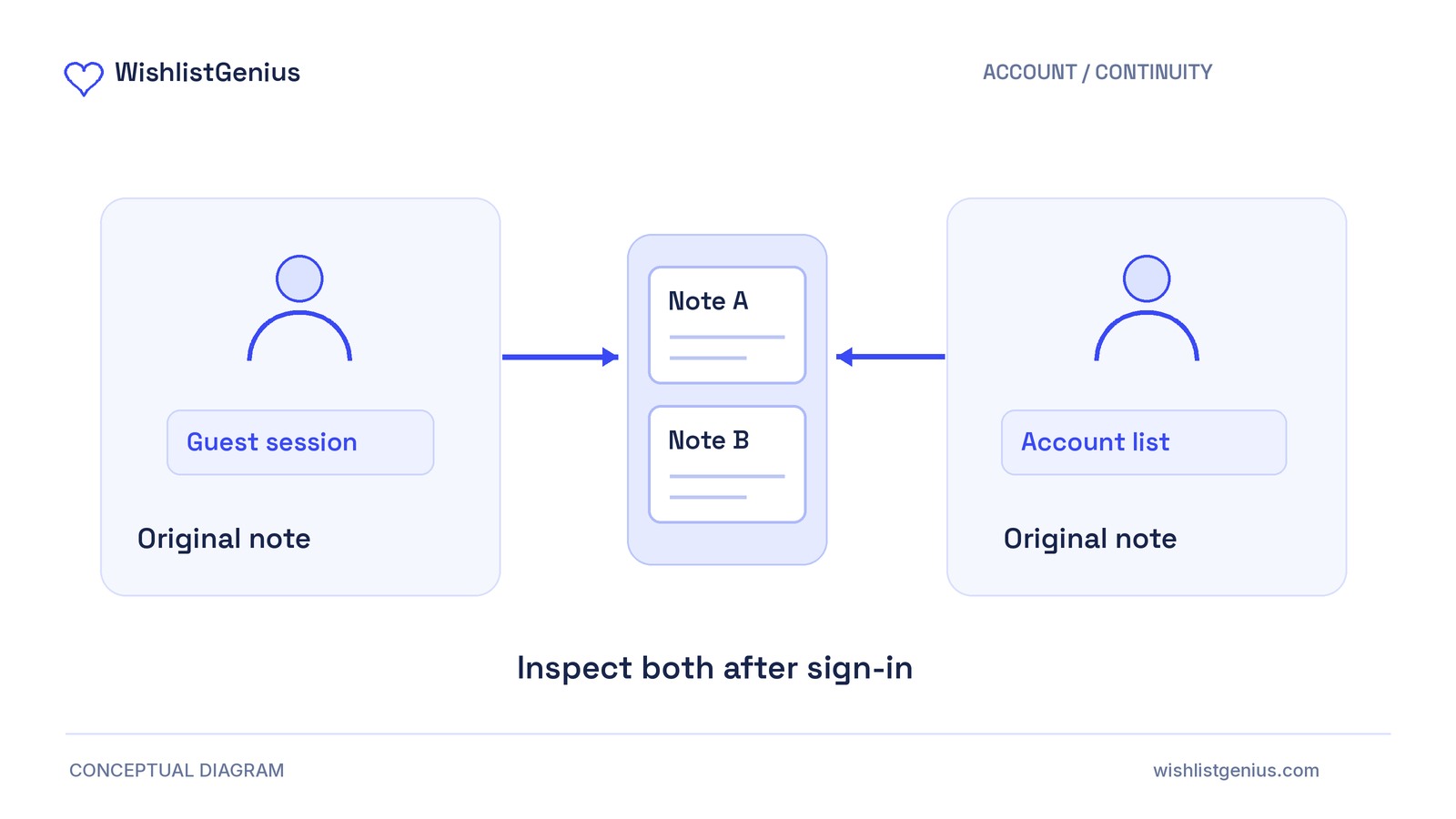
To test guest-to-account merging, save the same product variation with different notes in an account and a separate guest session. Sign the guest into that account, then verify that both conflicting selections and their original notes remain available for review. Check the account again in the other browser.
WishlistGenius Free 0.3.45 documents this preservation behavior in its saving and sharing guide. Pro is not required for this note-based test. The procedure below uses hypothetical inputs, not completed test results or customer evidence.
Prepare a controlled staging run
Use a backed-up staging copy and a fresh test account. Keep customer lists out of this test. The documented prerequisites are single-site WordPress 7.0+, WooCommerce 10.0+ and PHP 8.2+. Multisite is unsupported.
For a fresh installation, activate Free 0.3.45. Under WishlistGenius → Setup & settings, create or select the wishlist page, save your settings and confirm a storefront save works. For existing-installation updates, follow the setup guide.
Use two separate browsers or isolated browser profiles:
- Browser A: prepare the account list, then inspect it again after the merge.
- Browser B: begin as a guest, then sign into the prepared account.
Ordinary tabs in one profile are not isolated sessions. Record the merchant-set guest session lifetime, allow enough time to finish before expiry, and do not clear Browser B’s data during the run.
Start the sign-in acceptance record
Copy these fields into a test ticket. Add a screenshot reference for each starting state and inspection so later decisions refer to the same evidence.
- Test setup: date, staging site, plugin and platform versions, theme, caching setup, guest session lifetime and browser profiles.
- Account starting state: test-account label, exact product and variation, option labels, original note and evidence reference.
- Guest starting state: confirmation that Browser B is signed out and isolated, exact selection, original note and evidence reference.
- Expected outcome: both conflicting selections and their original notes retained for review.
- After sign-in: Browser B’s test account, selections and notes you can inspect, any messages and evidence reference.
- Other-browser inspection: Browser A’s test account, selections and notes you can inspect, and evidence reference.
- Decision: matches expectation, discrepancy or not confirmed; include reproduction steps and any investigation needed.
Save the same variation with two different notes
Use a standard variable product without custom add-ons and leave the catalog unchanged during the run. Select all required options before saving.
For this hypothetical example, both sessions save a ceramic mug with Color: White, Capacity: 350 ml. The account note is “For my desk”. The guest note is “Gift—check preferred color.”
Substitute an existing selectable staging variation. The important condition is the same exact selection with two different notes—not merely two variations of the same parent product.
1. Prepare the account starting state
In Browser A, sign into the test account. Select the variation, save it and add “For my desk”. Reopen the wishlist and verify the selection and note. Complete the Account starting state field.
2. Prepare the guest starting state
In Browser B, confirm you are signed out and starting with an empty guest wishlist. Save the same variation and add “Gift—check preferred color.” Reopen the wishlist and verify both details. Complete the Guest starting state field.
Stop before sign-in if either note is not retained when reopened, the products or options differ, or Browser B is not an isolated guest session. Resolve the setup problem before beginning a new merge test.
If the guest session expires before sign-in, preserve the observations and start a new controlled run. Do not treat that invalid run as evidence of merge failure.
Inspect sign-in and account continuity
3. Sign in from Browser B
Use your store’s normal sign-in route to enter the account prepared in Browser A. Open the wishlist before editing notes or removing selections.
Find both original notes and confirm each remains associated with the intended variation. Complete After sign-in with what you can actually inspect, keeping observations separate from the documented expectation.
Judge retained information, not a prescribed layout. The documentation does not establish a two-row display, merge dialog or automatic reconciliation control. Preservation also does not mean the plugin decides which note is correct.
4. Reopen the account in Browser A
Confirm Browser A is still signed into the same test account. Open the wishlist afresh rather than relying on the page left open before the merge.
Inspect both selections and exact original notes without editing them. Complete Other-browser inspection and compare it with Browser B. This checks signed-in account continuity, not anonymous access across browsers or devices.
Decide whether the result matches expectations
Use the Decision field consistently:
- Matches expectation: both conflicting selections and their exact original notes can be inspected in Browser B after sign-in and in Browser A afterward.
- Discrepancy: the starting states and session setup were verified, but an inspection shows a mismatch with the expected retained information or between browsers.
- Not confirmed: the setup or observations are insufficient to judge, including an invalid starting state, expired guest session or incomplete inspection.
A note you cannot find is not, by itself, proof that stored data was deleted. Preserve both browser observations before changing settings. Review the account used, session separation, and theme or caching interactions without assuming which caused the mismatch.
Neither a discrepancy nor an unconfirmed result is a pass for this sign-in journey.
Keep the conclusion within the test’s scope
Account lists are documented to persist across devices; guest session lifetime is merchant-set. This run does not establish permanent guest storage, recovery after a lost session or compatibility with every store integration. A matching result supports only the journey and configuration you checked.
Saving a product does not reserve inventory or grant permission to email the shopper.
Next step: if observations match, attach the completed record to your staging review and continue the remaining integration checks in the setup guide. Otherwise, preserve the record and both browser views, investigate the unresolved result, and repeat the controlled test before accepting this journey for launch.