WISHLISTGENIUS · 0.3.45
Free and Pro
Store owner manual
Set up your wishlist, help shoppers find their saved products, and configure the Pro workflows your store needs.
Updated 30 October 2026
Download manual PDF · 0.3.45Try the live Free and Pro demos →
This online manual and its downloadable PDF cover 0.3.45. Free 0.3.45 is available on WordPress.org; keep the Free and Pro versions matched when using the add-on. The manual includes cart results, quote statuses in CSV exports, confirmation actions and email-preference help. Screenshots show actual plugins with fictional products and accounts. Free setup and settings screenshots were refreshed for 0.3.45; captions identify the versions of retained shopper and Pro screenshots. Storefront examples use a customized Storefront theme; your theme controls the surrounding store design.
For single-site WordPress stores. Requirements: WordPress 7.0+, WooCommerce 10.0+, PHP 8.2+. Check your own theme, extensions and mail delivery on staging before using them with customers.
Choose the workflow you need
| Free | Pro, with Free active |
|---|---|
| One wishlist per shopper, guest saves, selected variations, private item notes, private/link sharing, individual-item cart actions and styling. | Pro image-heart appearance, multiple shopper lists, editable wishlist quantities, selected/all-item cart actions, cart save-for-later, requested notifications, reporting and supported imports. |
Free has no developer-account requirement or time limit. Pro features require a successful eligible licence activation for the store before use. After activation, those installed features remain available through expiry or a service outage; official downloads and updates require current access. Marketing signup, installation reporting and update checks remain separate choices.
A paid upgrade is useful when your store needs those additional workflows. No particular increase in sales is guaranteed.
Start here
Get your first wishlist live
Install WishlistGenius Free, create your wishlist page and check your first save. If you add Pro, keep both editions matched.
Open WishlistGenius from WordPress
Choose WishlistGenius in the main WordPress menu. You can also use Open WishlistGenius on the Installed Plugins screen. Both open the same workspace; its sidebar contains Free setup and styling; the activated Pro add-on also supplies customer wishlist inspection and its other tools.
Exit focus shows the WordPress menu again. The workspace still requires permission to manage WooCommerce; moving the menu does not grant access to other accounts.
When updating an existing Free and Pro pair, update Free first and Pro second without uninstalling. If an older Pro version is still active, the entry temporarily stays under WooCommerce until both plugins are updated. Existing workspace bookmarks continue to work.
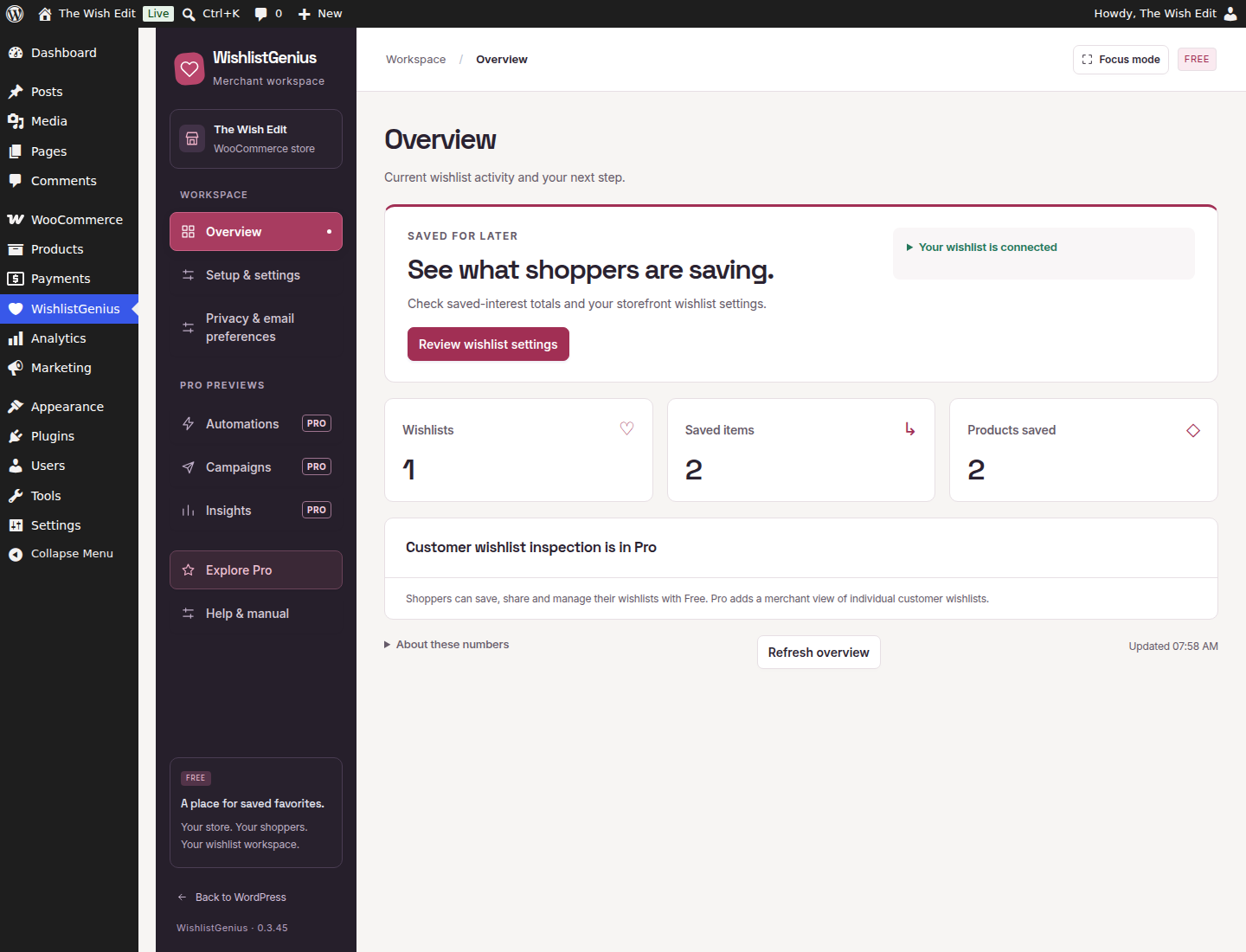
Open full screenshot →
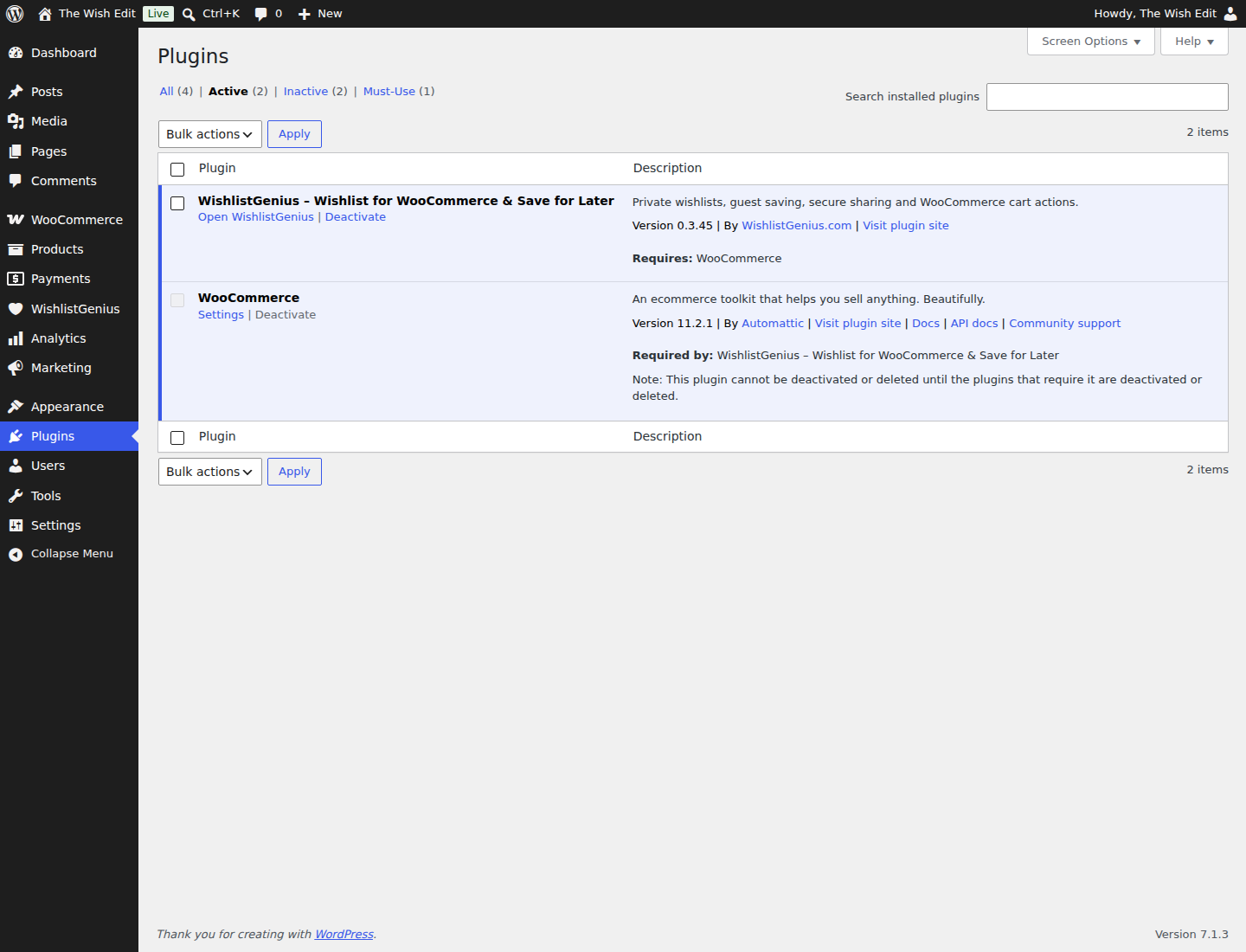
Open full screenshot →
Install the matching release
- Back up a staging copy of your store. Use single-site WordPress 7.0+, WooCommerce 10.0+ and PHP 8.2+.
- Free 0.3.45 is available on WordPress.org. Use matching Free and Pro 0.3.45 when installing the add-on. Check both versions before updating.
- For a fresh installation, open Plugins → Add New in WordPress and search for WishlistGenius. Check the version, then choose Install Now → Activate. If you have Pro, install the matching Pro 0.3.45 package from your account after Free and keep both active. For a manual ZIP installation, use the download guide.
- For an existing Free and Pro installation, upload the Free 0.3.45 ZIP from this site through Plugins → Add New → Upload Plugin and choose to replace the installed version. Then update to matching Pro 0.3.45 from your account without uninstalling. Update Free first and Pro second; keep both versions matched before configuring new integrations.
- If you use an older companion or an earlier Free release with cart save-for-later or public discovery, contact support before upgrading. Keep your existing plugins and backup until you have checked the upgrade path.
Keep your database backup with the matching old plugin files. New alerts and connections start off; review their settings separately before enabling them.
Create your wishlist page
Individually activating Free from the WordPress Plugins screen opens guided setup in focus mode, including after reinstalling with retained settings. Step 1, Storefront setup, uses your existing settings and wishlist page. Choose Create wishlist page, or select an existing published wishlist page by name; unrelated pages are preserved. Review Save button placements and header/mobile access, then choose Save and continue once a wishlist page is ready. This single action saves your storefront settings and then opens step 2, your optional sharing and email choices. If saving fails, setup stays on step 1 with your edits available to retry.
Use Open guided setup in Setup & settings whenever you want to repeat these steps. Back to WordPress opens your dashboard. Exit focus keeps this workspace open and reveals the surrounding WordPress navigation. Bulk activation, command-line activation and automatic updates do not redirect you into setup.
The Free and Pro merchant workspace uses a consistent light appearance, independent of the computer’s colour setting. Focus mode remains available. The live demo uses the same workspace.
The first step keeps the essentials together: your wishlist page, catalog/product Save buttons, and header/mobile wishlist access. Open Customize further for appearance, category restrictions, shopping behavior, privacy and backup controls. These use the same draft; Save and continue applies all your changes together.
For manual placement, you can leave the automatic catalog and product-page buttons off and use the Save button block, [wishlist_genius_button] shortcode, or Elementor widget. Open a storefront page with your Save button, save a product and check the wishlist. After checking, choose Mark setup complete under Setup & settings → Check your storefront, or Customize further → Check your storefront inside guided setup.
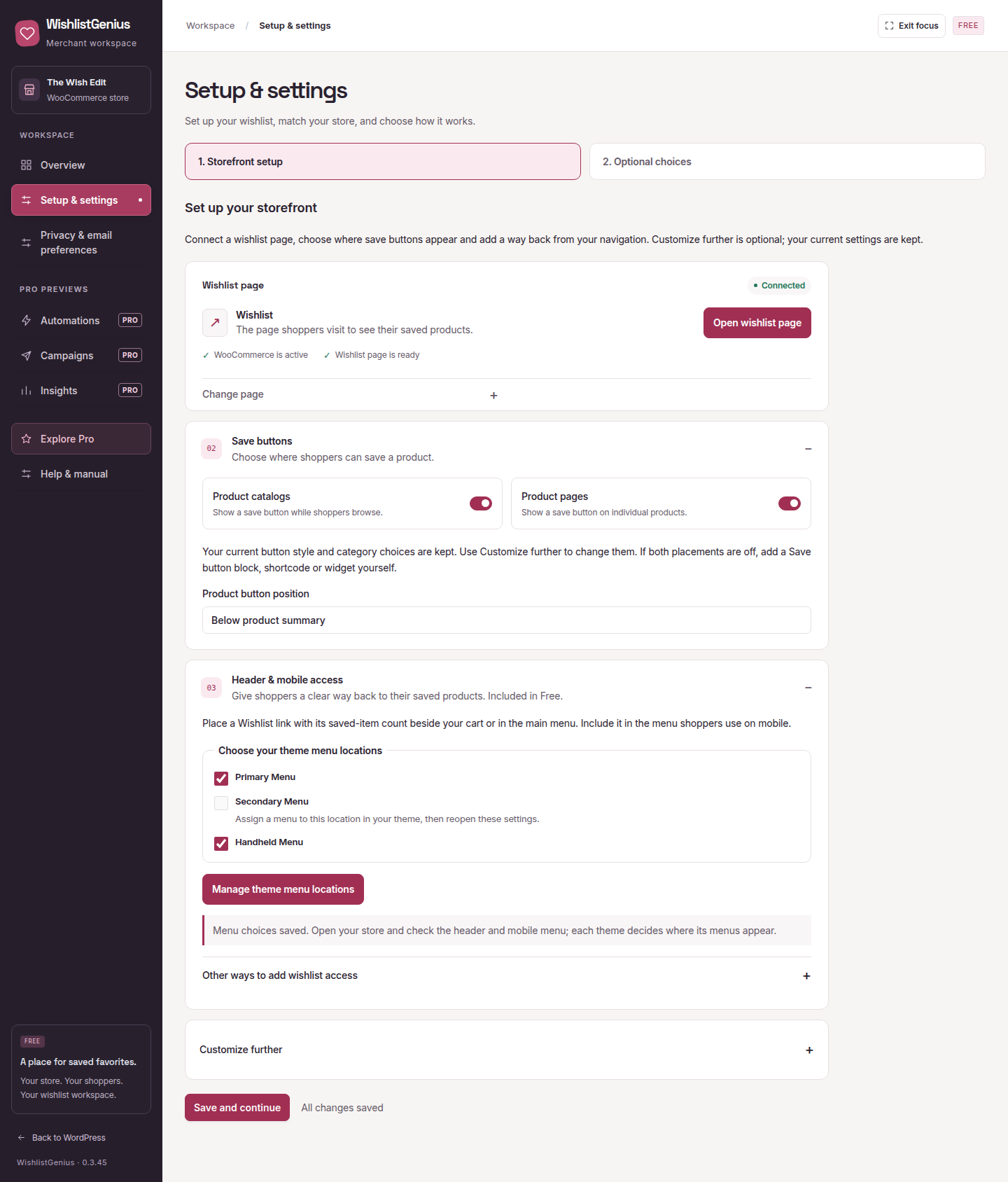
Open full screenshot →
Return to your workspace
WishlistGenius remembers the last available admin section in this browser tab. You can return to your settings at any time. If settings or templates have unsaved changes, choose Save and continue, Discard changes, or Keep editing before switching sections. Pro-only sections are skipped when only Free is active. Optional local usage counts are under Setup & settings → Diagnostics in Free, or Settings → Diagnostics with Pro; they start off and are not required for any plugin feature.
Check the whole journey
- Open a product in a separate browser session and save it.
- Check its saved state, then try Undo. Save it again.
- Open the wishlist and add a private note. Editable wishlist quantities require Pro.
- Add one saved item to the cart and confirm its selected variation. Normal WooCommerce cart quantity controls remain available; Pro adds wishlist quantities and selected/all-item cart actions.
- Sign in and check that guest items merge without overwriting conflicting account selections.
- To save a specific variation, select its required options before saving. A variable product can also be saved for later without a selected variation; choose the required options before adding it to the cart.
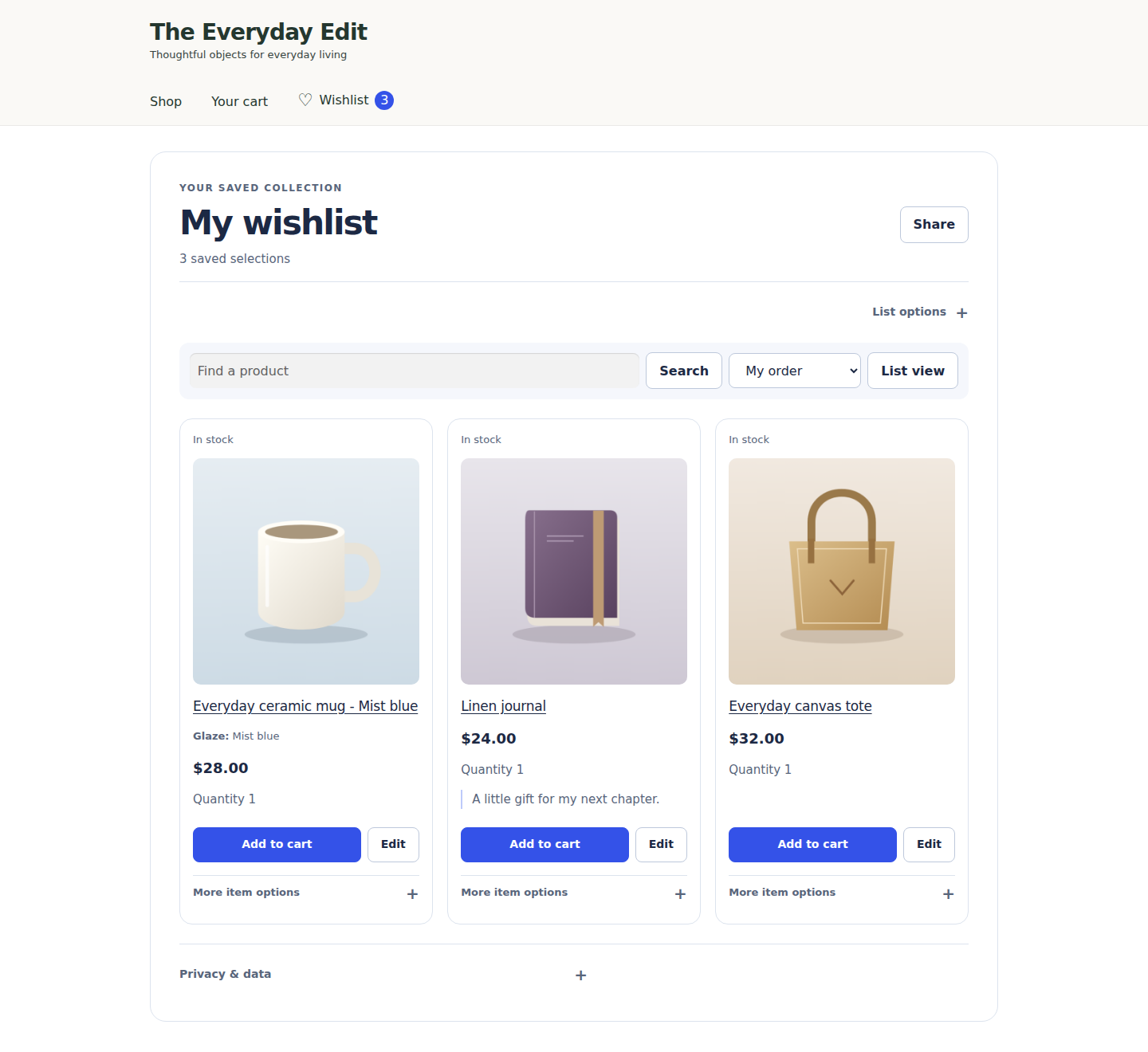
Open full screenshot →
Before using your live store
Check your theme, checkout, caching, product add-ons, and mail provider on staging. Keep backups, review the release notes, and check the wishlist, product options and cart on your staging store. The website preview uses a sample catalog; installing the plugin is the way to test your actual WooCommerce integration.
Updating an existing Pro installation
Pro 0.3.45 works with Free 0.3.45. Pro packages are not offered on the public download page. Download the matching package from your customer account, or contact support if you need help with access. Update Free first, then Pro, without uninstalling.
The former public evaluation update service is no longer available. Its optional checks cannot supply a Pro installer. Existing installations continue to work; you can turn off publisher checks under WishlistGenius → Wishlist Pro updates (under WooCommerce while an older Free version is active) to stop future requests. This does not change your installed plugin or stored data.
If you deactivate Pro, your saved lists and quantities are retained. Free still lets shoppers add individual items to the cart, where WooCommerce quantity controls remain available.
Your optional connection choices
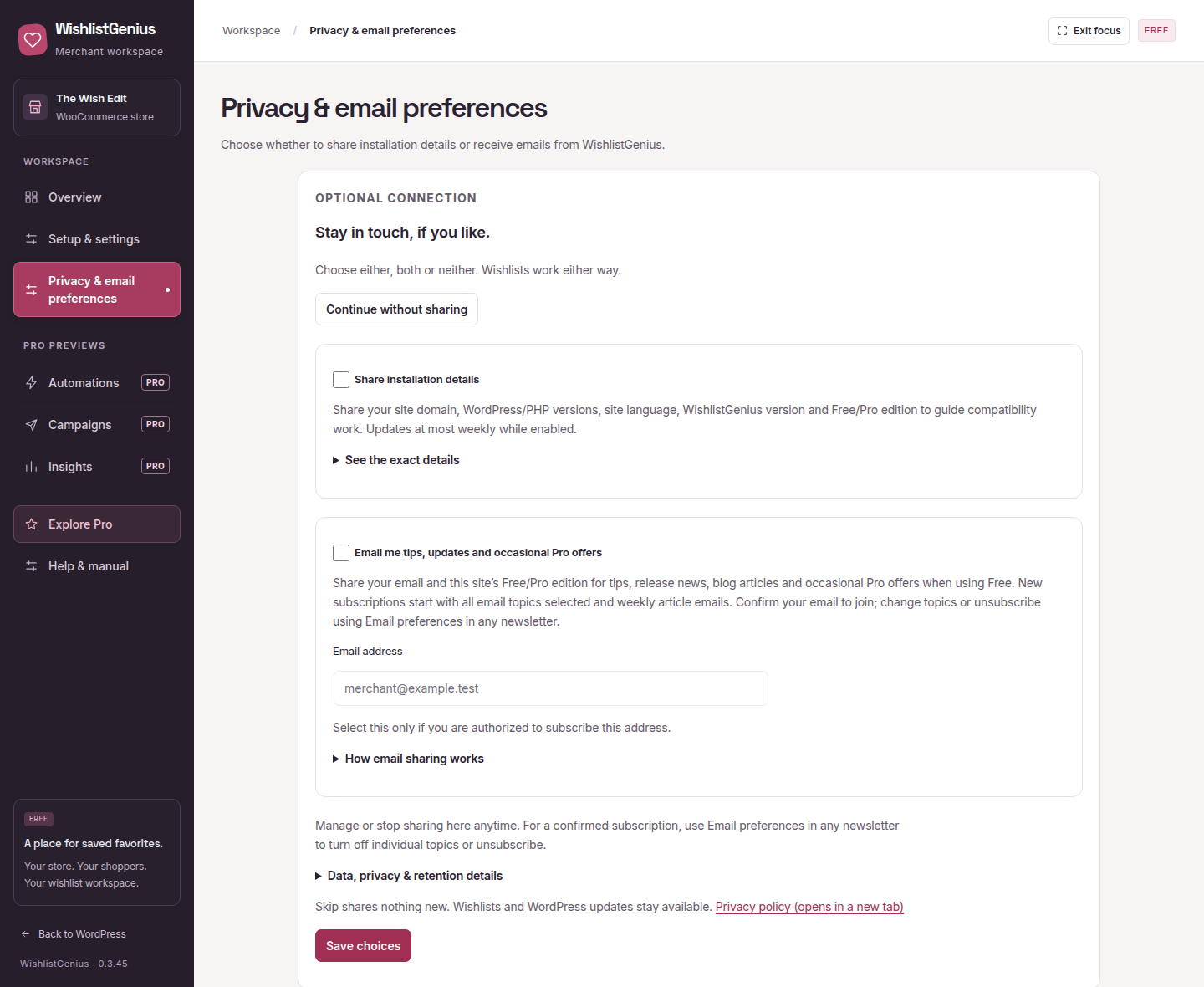
Step 2, Optional choices, presents installation reporting and merchant emails as separate unchecked choices on a new installation. Choose either or both and select Save choices & finish, or select the neutral Finish without sharing action at the top. Existing choices are shown and preserved; Finish setup without changing choices keeps them as they are. Sharing or signup is submitted only when you explicitly save these choices. Leaving the step does not submit consent. A successful finish shows Guided setup finished; an unsuccessful request keeps the choices open with its result. Next, Try your wishlist opens a suitable published product or catalog page. Save a product and use View wishlist in the same browser to check it appears. If the quick check cannot find a suitable product, open a public product manually to test your button, or publish one first. Saving setup alone does not verify a shopper save. Installation reporting includes the hostname, reported edition/plugin version and basic compatibility information. Email signup requires confirmation and can be used without sharing the hostname. Read the exact fields, retention and stop controls.
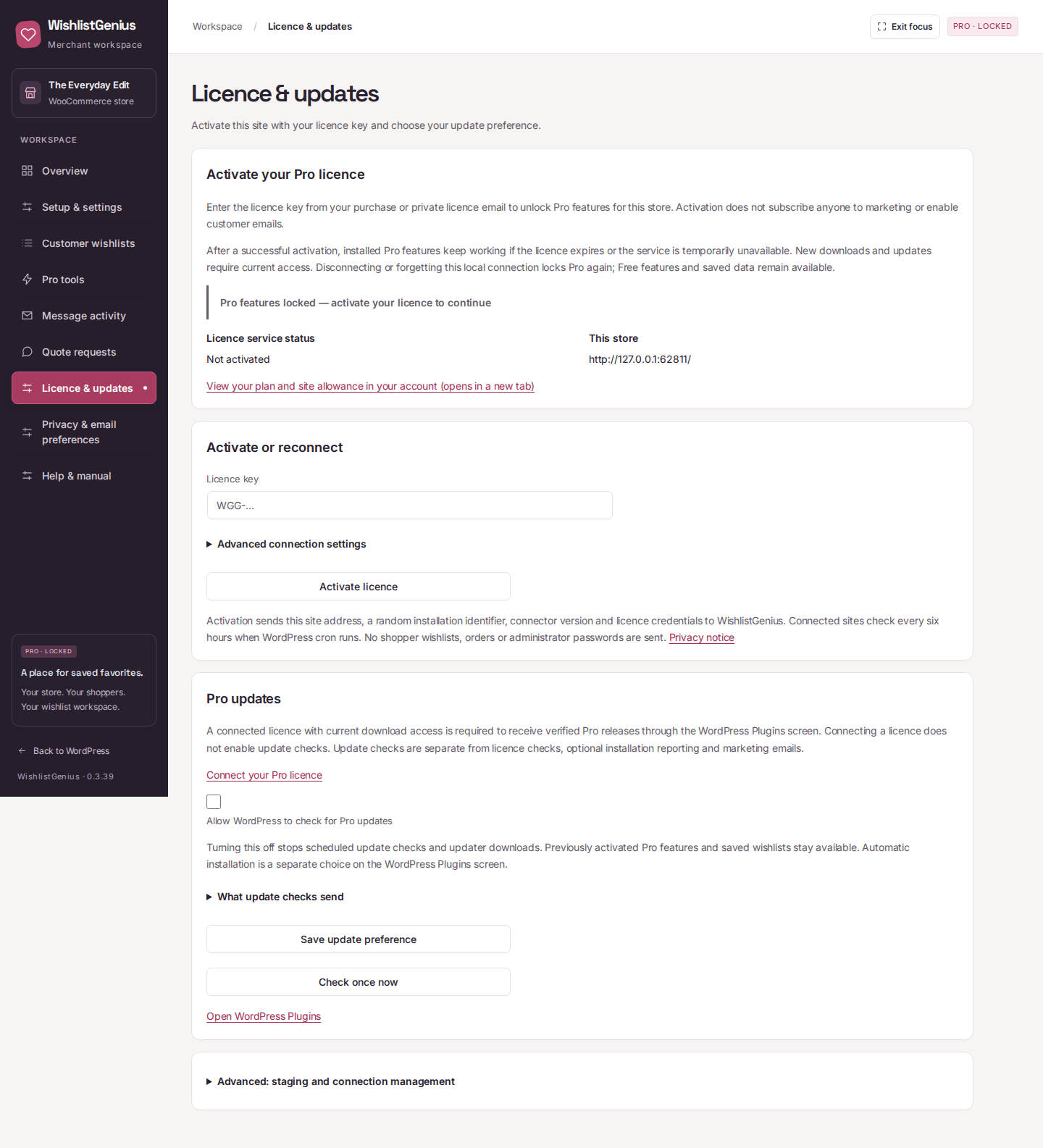
Activate your Pro licence
Activate matching Pro after Free. Individual browser activation opens Licence & updates in focus mode, including after a reinstall. Paste your key and choose Activate licence. Review the update-check preference separately. Licence activation does not subscribe you to merchant emails. Advanced controls include staging and releasing a registered site; your account shows plan and site-allowance details.
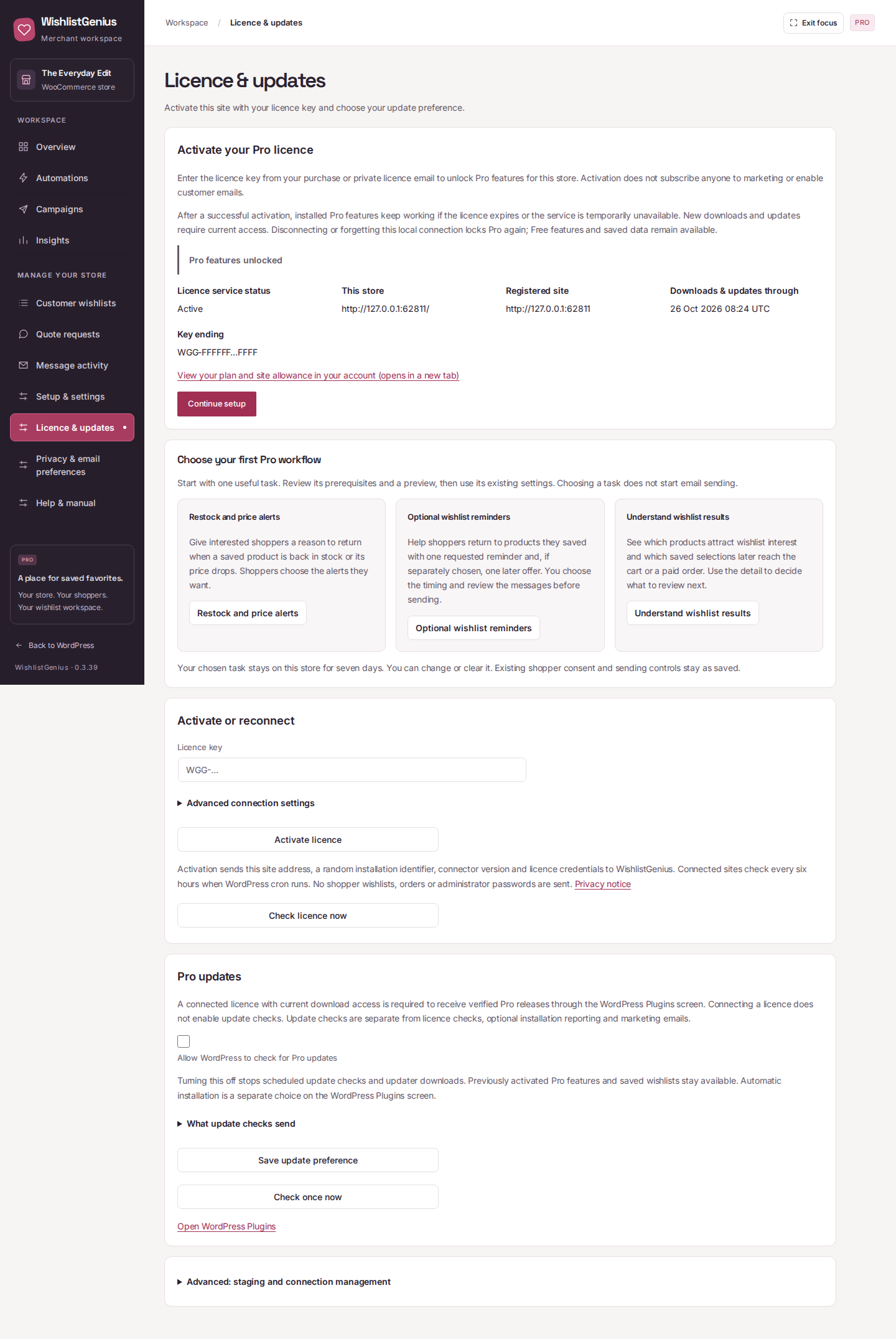
After a successful connection, Continue setup opens the Pro setup guide. Resume the Pro task you selected, or choose alerts, reminders or reports. You can also open this guide from Setup & settings. Install compatible Pro, then activate an eligible licence to unlock its features for this store. A failed first activation or a status check alone cannot unlock them. After successful activation, installed features keep working through expiry, temporary outages or later remote denial. Under Licence & updates → Advanced: staging and connection management, Release this site locks Pro after the service confirms the release and frees the registered site slot. Forget local credentials locks Pro immediately without freeing that remote slot. Both retain saved wishlists and settings. Ordinary deactivation keeps the earned activation for this same store. A changed store hostname, non-default port or home path requires activation for the new store; an HTTP-to-HTTPS upgrade retains access. Free features, privacy controls and unsubscribe remain available. New downloads and updates require current licence access. Older compatible Free releases return to Setup & settings when the Pro guide is unavailable. The standalone connection page remains the fallback when the workspace is unsupported.
Open full screenshot →
Open full screenshot →
View the complete activation page on mobile. The same Pro 0.3.39 activation page on a 390-pixel test viewport; this is browser emulation.

Inspect customer wishlists with Pro
This admin section reviews shoppers’ saved lists. Free gives each shopper one wishlist. Shoppers using Pro can create additional lists on the storefront. Select Open wishlist page to try that shopper experience; creating a merchant-owned collection is not an action on the customer-list overview.
With Pro activated, in Customer wishlists, select a wishlist name (on any screen), or choose View products beside a list on desktop to inspect its saved products, images, selected variations, quantities and current stock status. The read-only viewer includes pagination for longer lists and handles products that are no longer available. Store management permission is required; private shopper notes and shopper identities are excluded. The current-page CSV remains a summary of lists.
Set up your first Pro workflow
- Choose Restock and price alerts, Optional wishlist reminders or Understand wishlist results in the Pro setup guide.
- Review the current saved prerequisites. Email workflows show the wishlist page, relevant guest requirements and the store sending state. Reports need recorded activity, but no email setup.
- Review the genuine example using fictional data. For email workflows, Preview my saved message renders your saved message with sample values and sends nothing.
- Open the existing workflow editor to review and deliberately save your configuration. For reports, choose dates and build the report. Return to the Pro setup guide to check the result.
The guide confirms a successful configuration save or completed report during your current workspace visit. Opening a guide or preview alone does not complete the task. Configuration, shopper consent and the sending switch remain separate: a saved setup does not mean there are eligible recipients or that an email was delivered.
In Pro, relevant Customer wishlists suggestions open Pro examples before the plans link. An out-of-stock saved product can offer a restock-alert preview. Dismiss a suggestion if it is not useful; restore hidden suggestions from Explore Pro. The merchant product viewer is supplied by the activated Pro add-on. Shopper saving, sharing, variations and basic styling remain Free. Preview screenshots are bundled locally and contain fictional data. Choosing plans from a contextual workflow suggestion saves your chosen task on this store for seven days; it does not send your store address or product details to the publisher.
Receive Pro updates in WordPress
- Keep compatible Free and Pro active and open Licence & updates.
- Activate a current licence for this site.
- Separately enable Allow WordPress to check for Pro updates and save.
- Use the WordPress Plugins or Updates screen when a release is available. Enable auto-updates is a separate WordPress choice.
Checks use your site connection to request a signed release. WordPress installs only a verified compatible package. If access has expired or verification fails, the installed plugin stays unchanged. A manual check does not enable automatic installation.
If WooCommerce Shopper Lists is enabled
WooCommerce’s optional native lists and WishlistGenius store separate lists. In the automatic account-page mode, WishlistGenius keeps its usual Wishlist endpoint when native Wishlist is off; when native Wishlist is on, it uses a separate WishlistGenius account section. Settings also let you keep a separate section or use only your dedicated wishlist page.
Review your product and catalog buttons to avoid confusing shoppers with two save controls. Changing account navigation does not merge, delete or transfer either system’s lists.
An optional honest review
Review invitations are disabled in this release. If a public WordPress.org review destination is later verified and explicitly enabled, a small Overview invitation can appear after at least 30 days of real saving activity, with saves on three distinct days and setup complete. Leave an honest review, postpone it for 30 days, or dismiss it permanently. Eligibility and dismissal stay in your store. The invitation is not shown before the public directory link is enabled.
INCLUDED IN FREE
Make your wishlist easy to find
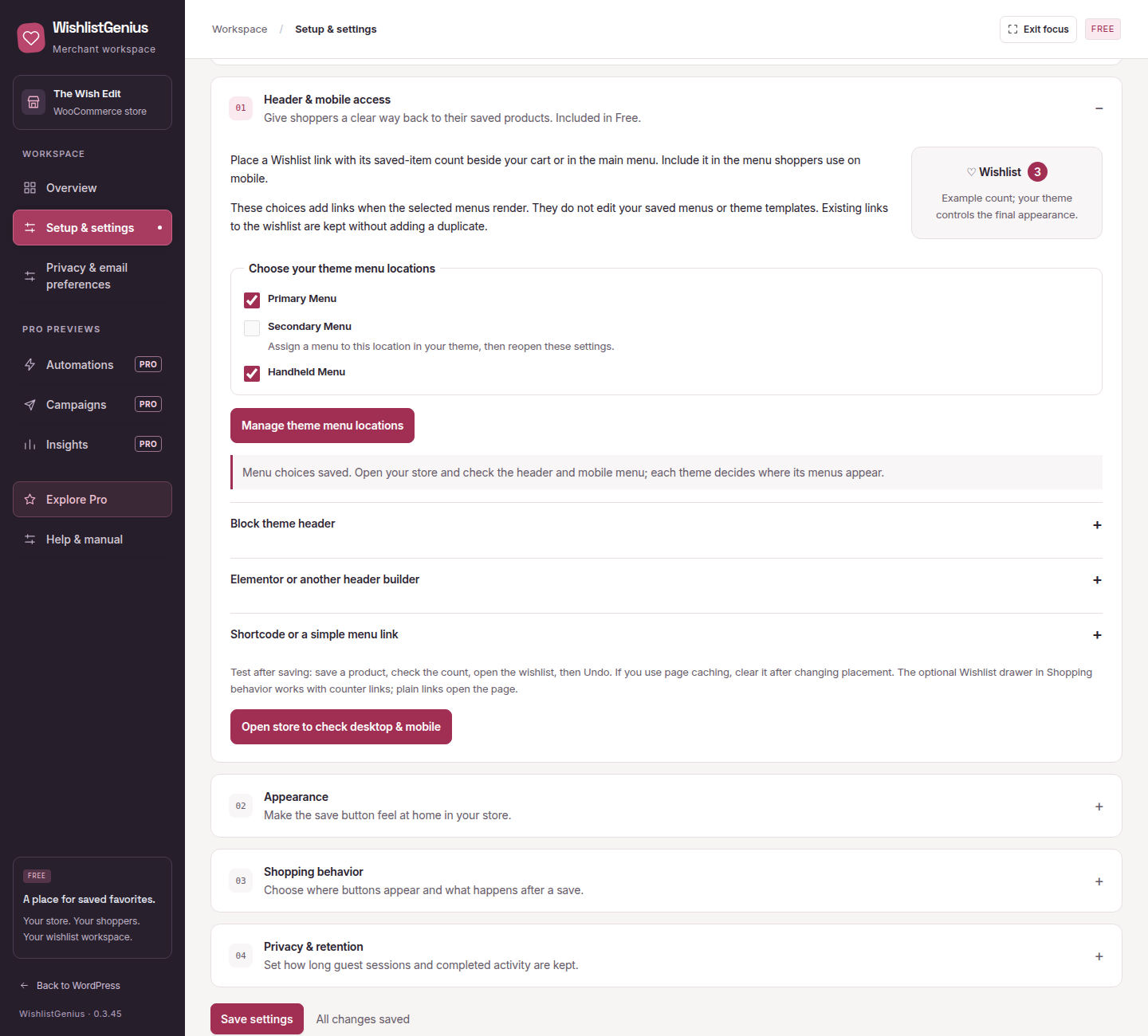
Give shoppers a persistent way back to their saved products. Free and Pro both include header and mobile wishlist access, the wishlist counter block and shortcode, the Elementor widget and the optional wishlist drawer.
- Choose the destination. In Setup & settings, create or select your wishlist page.
- Choose your navigation. Select the assigned desktop and mobile menu locations offered by your current theme. WishlistGenius adds a link when that theme renders a selected location; it does not rewrite the menu or header template. An existing link to the same wishlist destination is retained to avoid a duplicate.
- Use your header editor where appropriate. For a block theme, add the WishlistGenius counter block to the header template. For an Elementor header, add the WishlistGenius widget and choose Counter, if your installed header builder supports editing that template. The
[wishlist_genius_counter]shortcode is also available in areas that render shortcodes. - Choose page or drawer. Keep normal wishlist-page navigation, or enable the existing optional wishlist drawer. A normal menu link still opens the wishlist page.
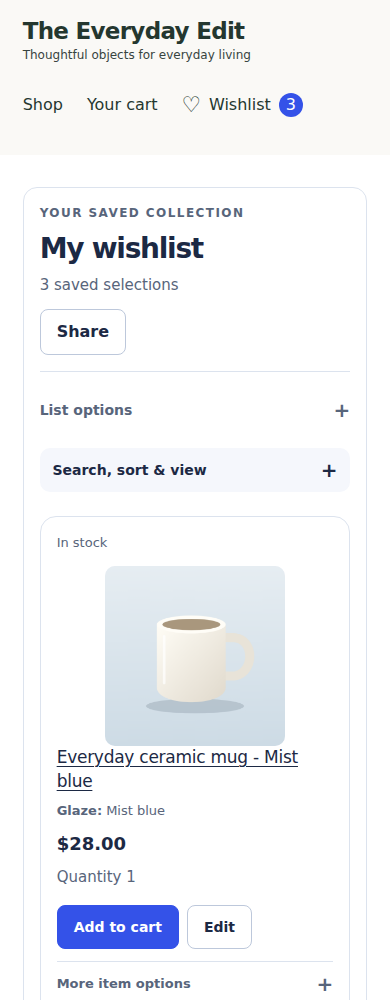
- Check desktop and mobile. Open the storefront, save a product, check the count, then try Undo. Check your mobile menu too. Revisit placement after switching themes; custom headers and caching need a check on your own store.
The counter counts saved selections across the current shopper’s active lists, not product quantities. It refreshes after wishlist changes. A passive counter visit does not create an empty guest wishlist. If a count cannot be loaded, the link remains available without an invented count.
Header navigation is included in Free. Pro’s optional circular heart-only save buttons on product images are a separate display feature.
Open full screenshot →
Open full screenshot →
Shopper experience
Saving, lists, and private sharing
Understand quick save, Undo, product options, guest sessions, notes, and revocable links.
Wishlist controls on a phone
Open Search, sort & view above your saved products to change search, sorting or layout. The controls start compact on narrow screens and can be expanded whenever needed.
One click when there is one list
Since 0.3.42, save buttons show a loading state until their actions are ready. Wait for the normal save label before using them; Pro list selection waits for its controls too.
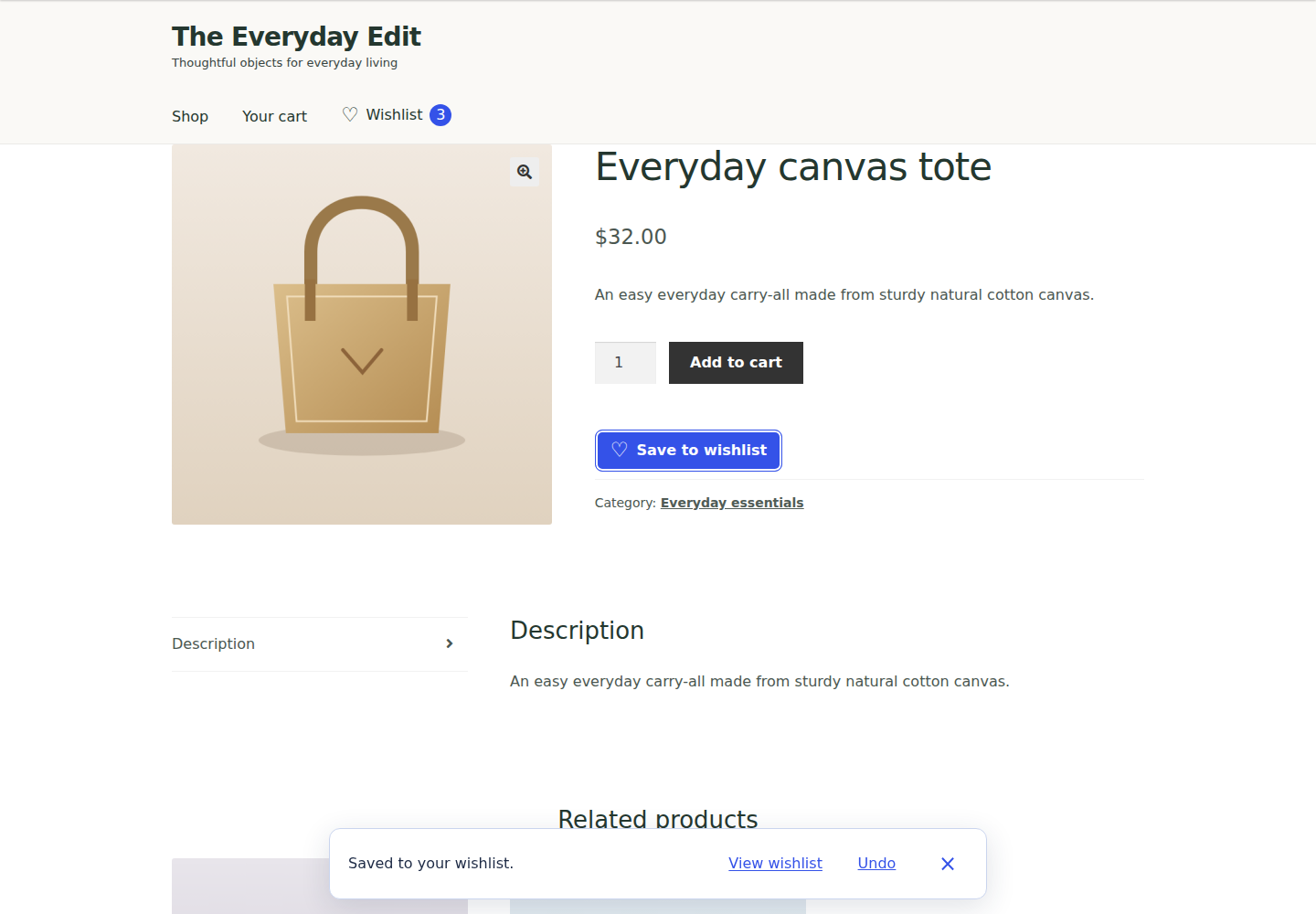
With quick save enabled, a shopper with one list saves directly from the catalog or product page. The confirmation offers Undo for a newly saved item. Saving the same selection again does not create a duplicate. Undo will refuse to delete an item that has changed since it was saved.
Shoppers with multiple lists choose a destination. Free supports one list; Pro supports up to 50. Each list supports up to 1,000 distinct selections.
Keep the selection
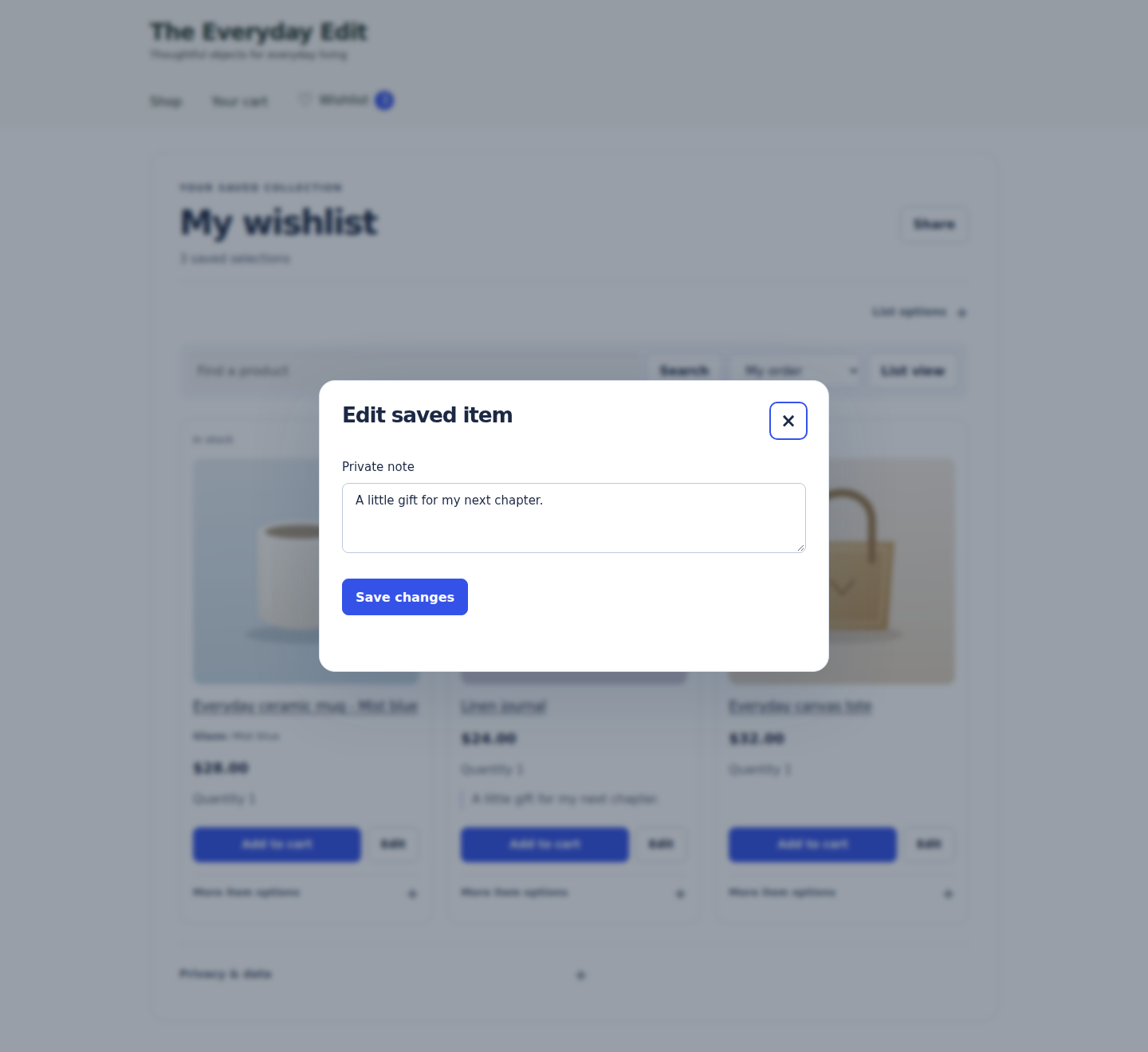
Free saves selected product variations and private notes in one guest/account wishlist. Pro adds editable wishlist quantities and selected-item or whole-list add-to-cart. A variable product can be saved for later before its options are chosen. To save a specific variation, supply its required choices; the plugin does not guess an “Any” variation. Required options must be selected before adding to cart, and WooCommerce cart validation still applies. Unsupported custom product add-ons need a dedicated integration.
After adding to the cart, the result reports how many saved selections were added. It shows a failure count only for selections that could not be added. Review any item-specific issue and check your cart before retrying an uncertain result.
Guests and accounts
Guests can begin without an account. A signed browser cookie reconnects them to their wishlist; its default lifetime is 30 days, configurable from 1 to 365 days. Account lists persist across devices. When guest and account selections have conflicting quantities or notes, both are retained for review rather than silently overwritten.
Choose who can see a list
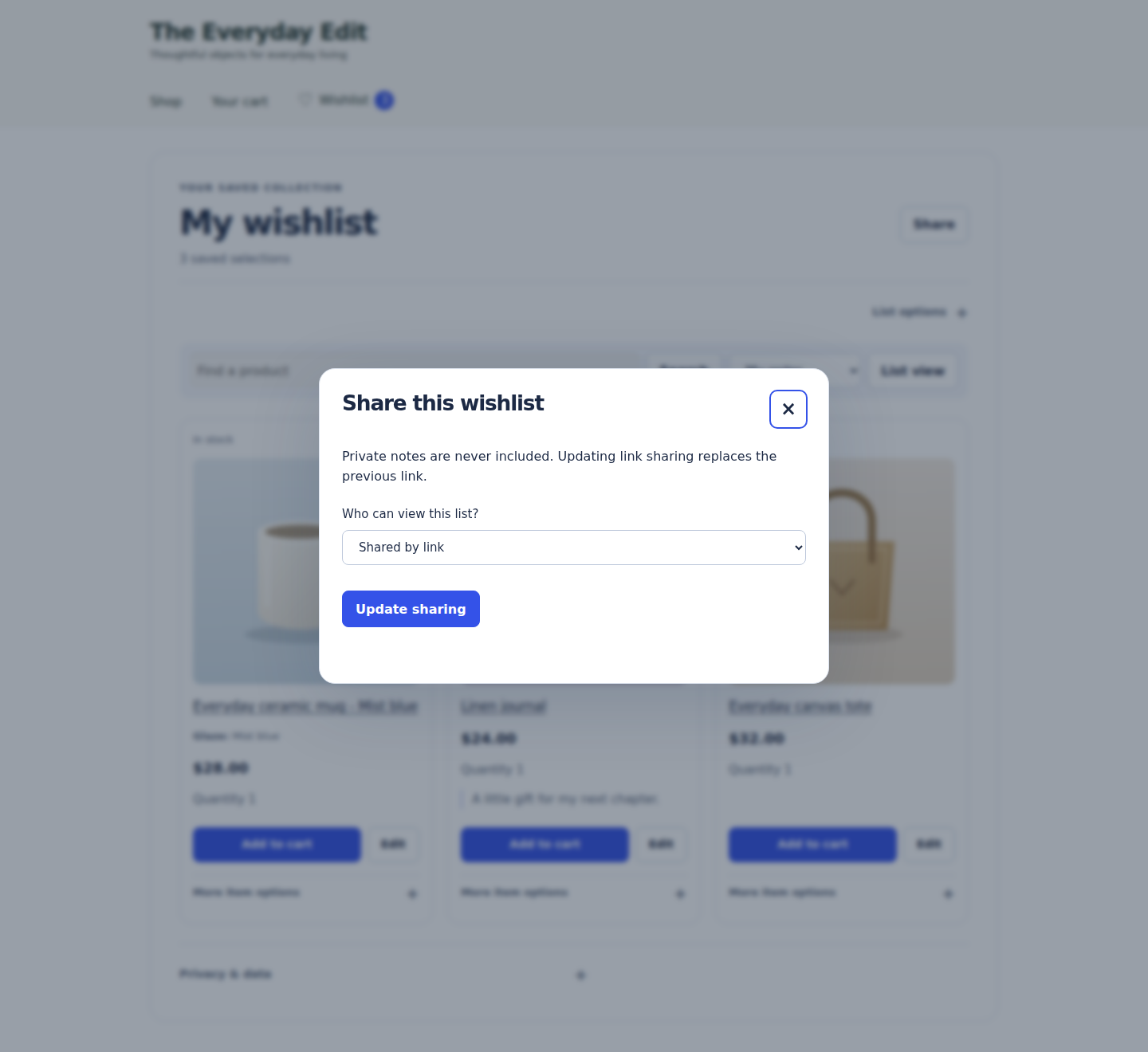
Lists start private. Unlisted sharing creates a secret, revocable link. Updating sharing invalidates the previous secret link. Public lists appear only if the merchant enables the public directory and the shopper publishes the list.
Open Share, choose Shared by link, then select Update sharing. Use Copy link after the new link appears. Choosing a sharing option alone does not publish a link. To revoke access, choose Private and select Update sharing; previous links stop working. Updating link sharing again replaces the old secret link.
Shared views exclude private notes and account details. Anyone holding an unlisted link can open that shared view; share it intentionally. Under List options, Export CSV and Print / save PDF can include private notes. The latter opens the browser’s print view, where the shopper can choose a printer or save a PDF.
Cart save-for-later and discovery
Pro includes cart save-for-later and public wishlist discovery. Free keeps a personal wishlist, direct sharing and wishlist-to-cart actions. Public discovery requires the merchant to enable it and the shopper to make a list public.
Configured products
Pro provides adapters for standard Product Add-Ons choices without uploads, complete Product Bundles and Composite Products parents, ordinary new simple or selected-variable Subscriptions, and standard Bookings date/time/resource/person/duration fields. The relevant vendor APIs must be installed. Prices and availability are rechecked in the cart; saving a booking does not reserve it.
Uploads, arbitrary metadata, renewal/switch/resubscribe operations and custom configurator input schemas are excluded. Cart save-for-later retains extra configuration only when the integration captured and signed it; otherwise it keeps the cart item and asks the shopper to reconfigure. Confirm your exact paid extensions on staging before use.
Manage lists and request a quote with Pro
With Pro activated, use New list and the Your wishlists selector to organize collections. List options includes Duplicate and Make default. When there is another list, use an item’s Move or Copy control to choose its destination. Review conflicts instead of repeatedly retrying a stale item.
A signed-in shopper can open List options → Request a quote, write a request and choose Send request. The confirmation explains that this deliberately shares the shopper’s account name, email, list items, quantities and private notes with the store. Review those details first. The store reads and manages the submission in Quote requests; it is a request in the store’s inbox, not an order or payment.
In Quote requests, choose a status and save it before exporting. After a successful save, Export CSV includes that current status without requiring a page reload. If the save fails, the last saved status remains in the export; retry the save before exporting again.
Download or erase wishlist data
Open Privacy & data on the wishlist. Download my data exports the shopper’s wishlist data as JSON. Erase my wishlist data opens a confirmation; Erase all removes their lists, saved selections, notification preferences and WishlistGenius coupons. Store orders are managed separately. These privacy operations also cover retained Pro data when the add-on is inactive or removed.
Pro
Set up useful notifications
Set up guest product alerts, low-stock notifications, recovery and optional workflow connections with clear consent.
Enable sending deliberately
Since 0.3.42, the shopper’s Email preferences explains only the purposes offered in that dialog. An alerts-only choice does not describe unrelated reminders or promotional messages. Saving still grants no email permission.
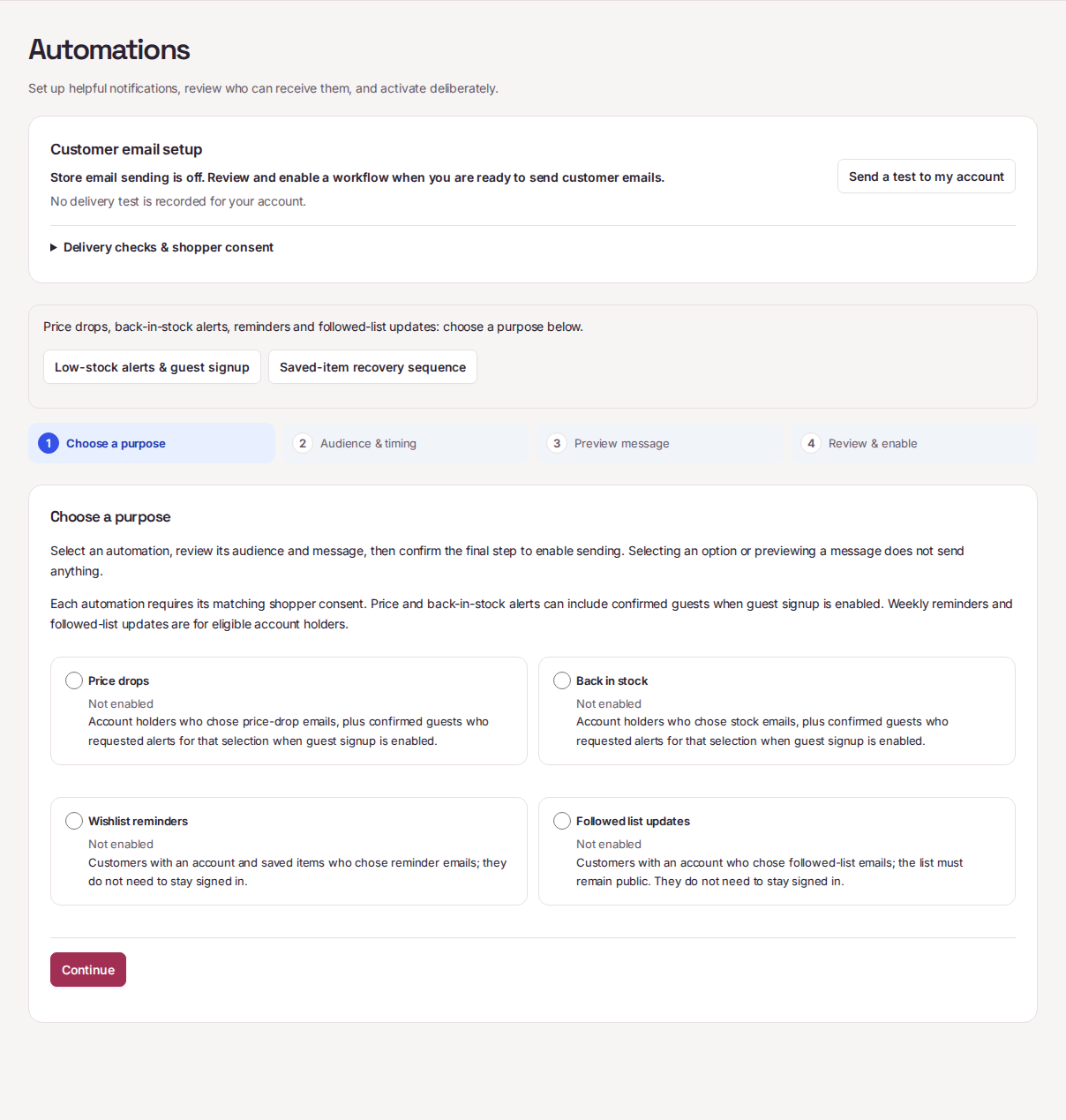
Open Automations to review the sending controls. Saving a wishlist never subscribes anyone. Account notifications require the relevant selected category; guest alerts and recovery require explicit choices and email confirmation. Pro email sending starts paused. Configuring a new feature does not unpause it.
Open full screenshot →
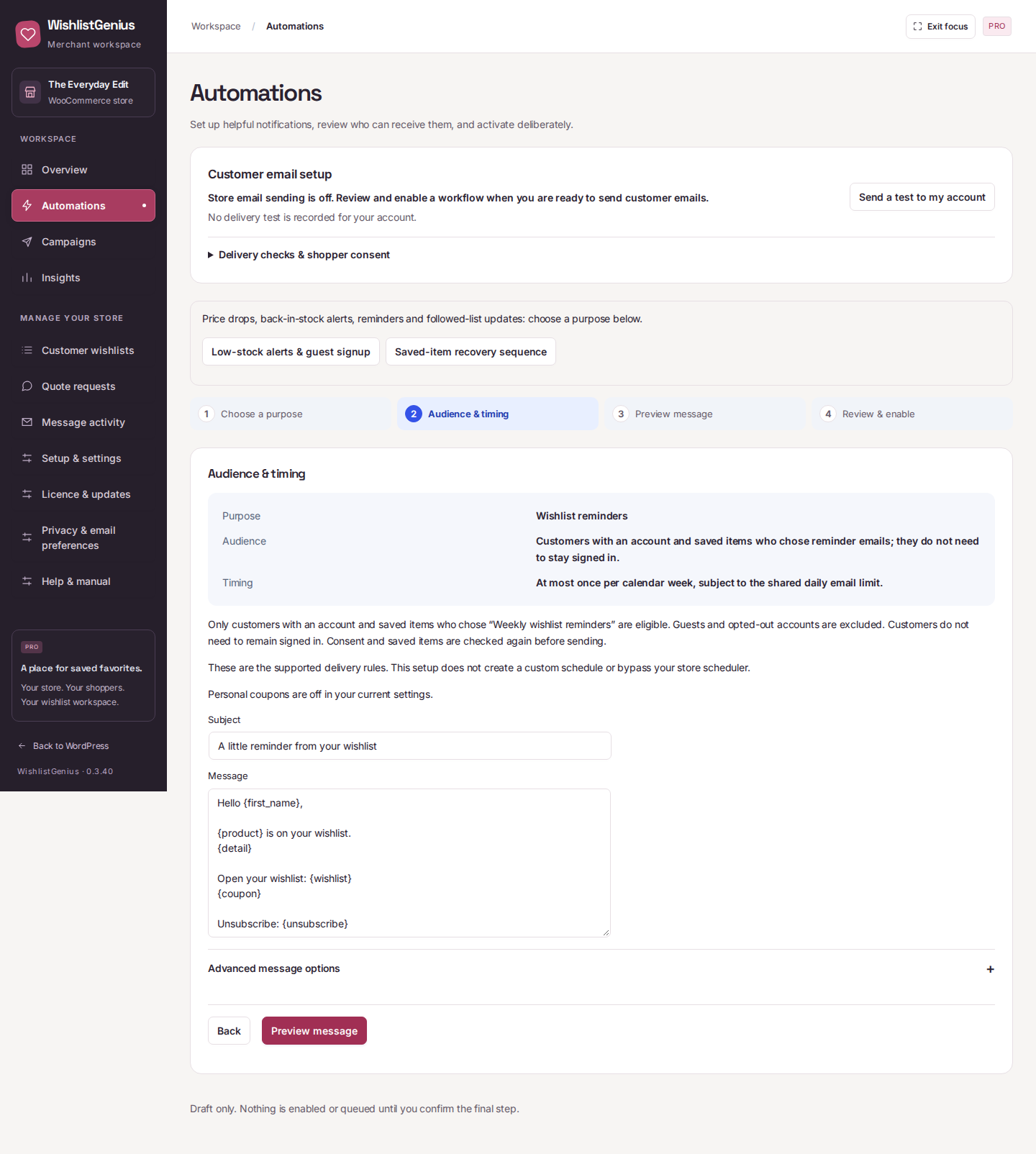
In 0.3.40, each workflow names its matching customer preference. Wishlist reminders require “Weekly wishlist reminders”; followed-list updates require “Updates to public lists I follow.” Campaign permission is separate.
Preview your message before sending
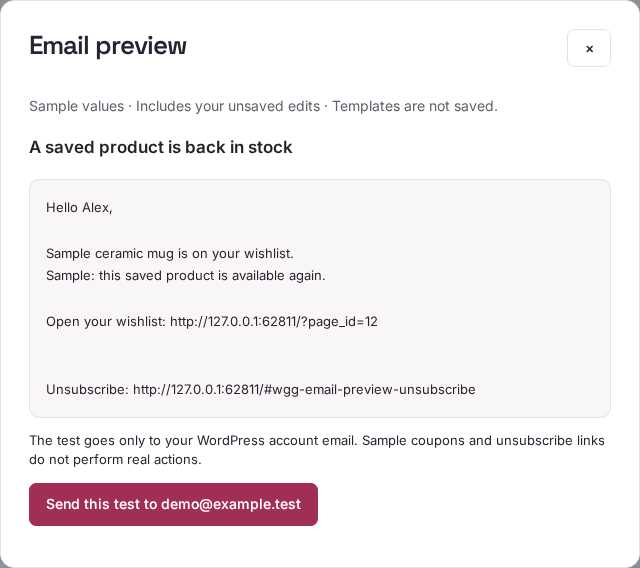
Open Settings → Email templates, expand a message type, edit it, then choose Preview & test. The preview includes unsaved edits and uses clearly labeled sample values with the same renderer as production email. It does not save the template, contact shoppers, or create coupons.
Select Send this test to [your profile email] only when you want that reviewed draft sent to your own WordPress profile email. Template and delivery tests share a five-minute cooldown. Use Save templates separately to apply edits to future messages.
Price and stock changes
WooCommerce product updates enqueue a refresh of watched selections. The worker processes due work through Action Scheduler when available, with WordPress cron as the fallback. The nominal worker interval is one minute; actual timing depends on your site’s scheduler and traffic.
A fallback scan checks up to 200 watched selections per pass. Message activity shows waiting messages and messages needing review. Open Advanced delivery tools for watched selections, longest wait and the scheduler. On a low-traffic store, configure a reliable server cron to run WordPress scheduled work.
Campaigns and followed lists
Select a product and, if required, its variation by name. Campaigns consider only customers with an account who allowed Store messages about saved products; guest alert and reminder subscriptions do not qualify. Choose saved-quantity and recency filters, enter a unique campaign reference, and review before queuing. The generated reference refreshes after a confirmed request. Identical retries using the same reference are acknowledged without scheduling again. Reusing a reference with different product or audience criteria is rejected; use a new reference for a new campaign.
Followers can opt in to updates from public lists. The plugin checks consent and visibility again before sending and groups list-change notices by day. Making a list private or withdrawing consent prevents delivery.
Read the delivery states correctly
Transport accepted means WordPress’s mail transport accepted a message, not that it reached the inbox. Confirmed failures can be retried. Unknown outcomes are held for review and are not automatically resent. Open Message activity to review failed or held messages and their available next action. A per-account daily limit also applies, so not every eligible event results in an immediate message.
Mail delivery depends on your hosting and mail provider. The live Pro demo captures generated messages locally and never sends them externally.
Guest product alerts and genuine low stock
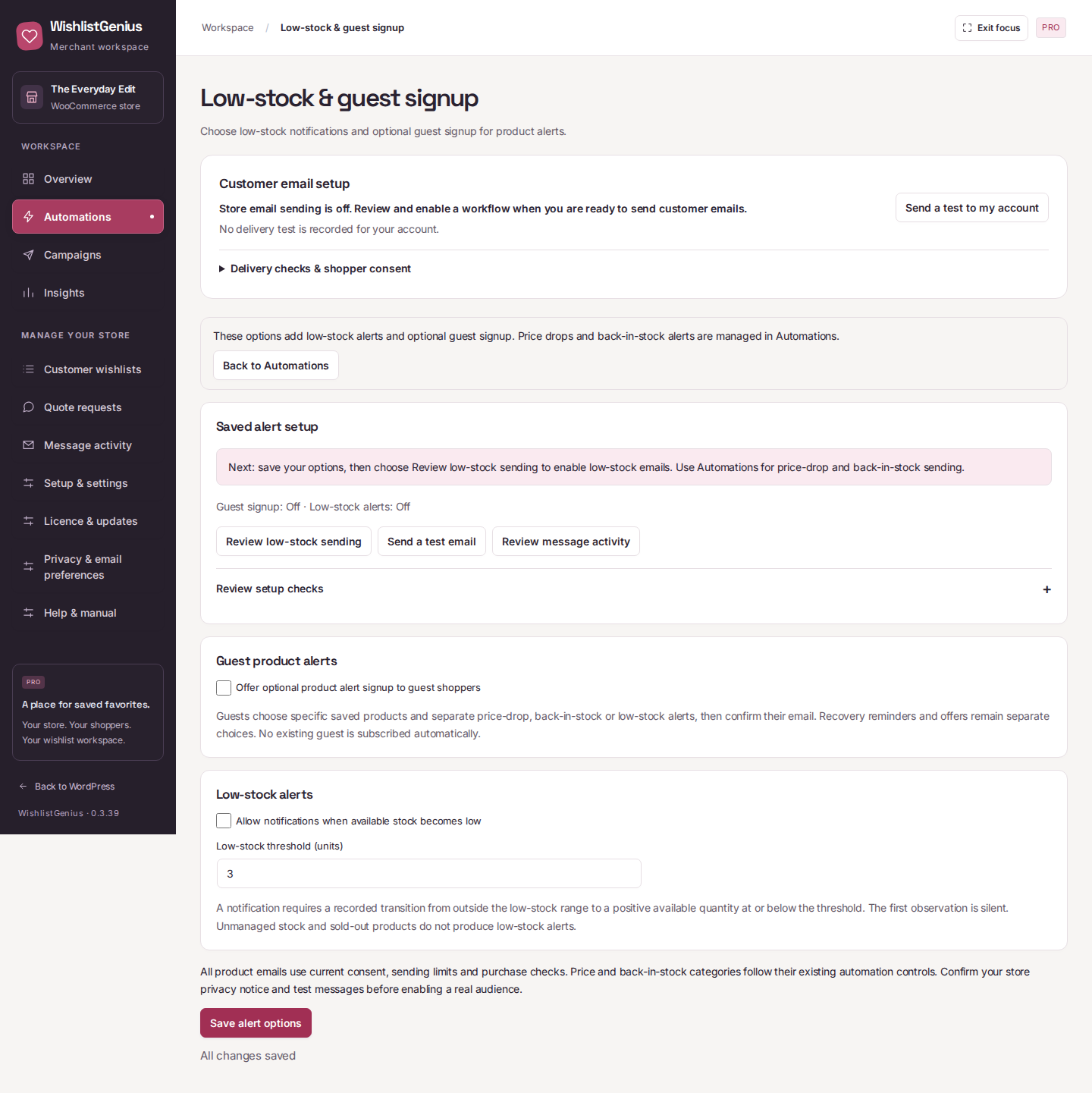
Open Automations → Low-stock & guest signup. Price-drop and back-in-stock workflows remain in Automations, with a return link from this page. Guest signup and low-stock alerts start off. Guests choose specific saved products and separate price-drop, back-in-stock and low-stock categories, then confirm their email. No account is required. Guests can withdraw individual choices immediately. Additional permissions or another email address require a fresh confirmation while existing confirmed choices are preserved.
Low-stock messages require managed inventory moving from outside the low-stock range into positive stock at or below the threshold, including a restock into that range; the first observation and threshold changes are silent. Sold-out, backordered and unmanaged stock do not create urgency messages. Current consent, purchases, expiry, removed selections and shared sending limits are checked before delivery.
Open full screenshot →
A short recovery sequence
Open Automations → Recovery sequence to review timing, messages, previews and audience. The sequence offers one reminder and an optional follow-up offer, with separate offer consent. Guest email confirmation and private return links do not create a WordPress account. Relevant purchases, unsubscribe, expiry, removed items and changed sequence settings stop eligible pending follow-ups.
Optional AutomateWoo and webhooks
Settings → Integrations offers a named AutomateWoo save trigger and a signed HTTPS webhook. Connections start off and require reviewed settings. They use current account campaign consent and respect the store sending pause. The webhook sends event ID, time, product/variation IDs, quantity and currency; it excludes email, account identifiers, private notes and access tokens. Its provider sees the connection IP. Review that provider’s privacy terms and your store notice first.
The AutomateWoo adapter supports the immediate workflow boundary; delayed workflows are not enabled through this trigger. Actions and downstream providers configured in AutomateWoo follow its settings. Verify the actual vendor version and complete workflow on staging. Turning a connection off prevents eligible queued delivery; it cannot recall data already received.
CUSTOMER EMAIL SETUP
From customer choice to a reviewed message
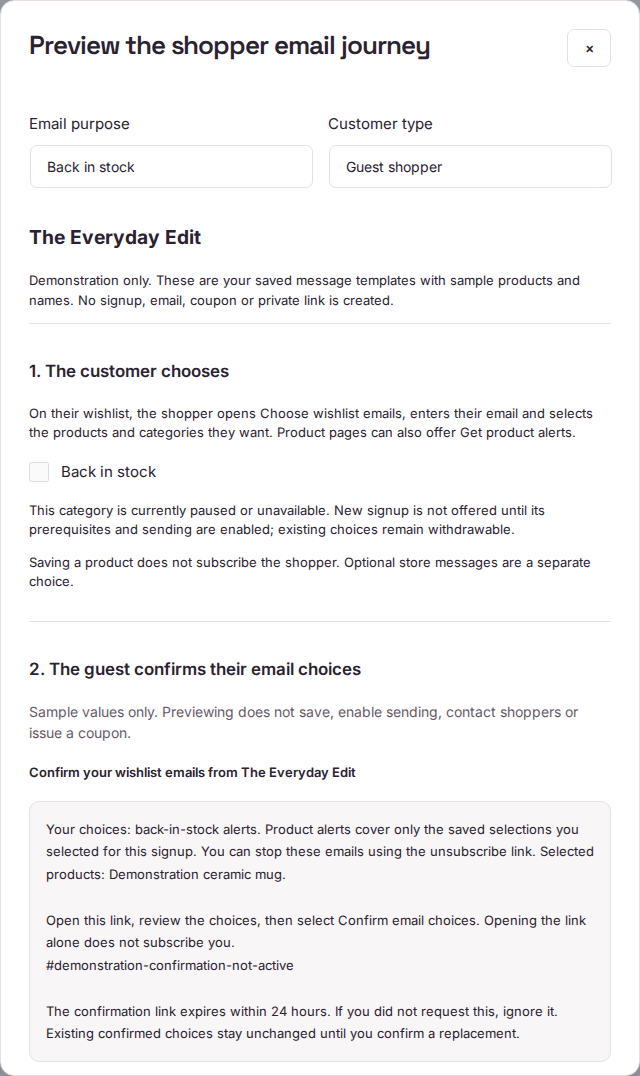
Open Automations, Campaigns or Recovery sequence to see a compact Customer email setup summary. Sending and test status stay visible, with a next action for the current state. Expand Delivery checks & shopper consent for background-processing details, tests, previews and message activity. Failed or held messages and delayed or missing background processing remain visible before expanding details. Preview the shopper journey with your store name and current saved templates. Demonstration products and names are labelled; previews never create subscriptions, usable private links, emails or coupons.
- Check the customer choice. Customers with an account open My wishlist → Privacy & data → Email preferences. New choices are offered only when the store makes that category available. Existing paused choices remain visible and can be withdrawn. Campaigns require the separate “Store messages about saved products” choice; customers do not need to remain logged in to receive an eligible email.
- Confirm guest subscriptions. Where guest signup is enabled, guests choose their saved products and email categories, then use the confirmation email to review and confirm. Opening the email link alone does not subscribe them. Guest alerts and reminders do not subscribe anyone to product campaigns.
- Manage individual guest choices. Guests can turn off individual categories or product alerts immediately. Adding permissions or changing the email requests fresh confirmation. Existing confirmed choices continue until a reviewed replacement is confirmed or the shopper withdraws them. Pending changes can be cancelled, and confirmation does not extend the original signup expiry.
- Check your store delivery. Send a test only to your own WordPress profile email. The panel distinguishes transport acceptance from your “I received this test” confirmation, and shows background processing and messages needing attention. Tests share a five-minute cooldown. Receipt of one test does not guarantee future inbox delivery.
- Enable only the reviewed workflow. Use the relevant sending review. Turning on an automation does not release waiting campaigns. Campaigns have a separate explicit review showing waiting work; Recovery can be enabled without activating an unrelated automation. Stale reviews must be refreshed before saving.
Shopper choices are separate from the store owner’s optional WishlistGenius newsletter and installation sharing. Email delivery uses the store’s WordPress mail transport. If you use an SMTP or email delivery plugin, configure it there, then use Send a test to my account in WishlistGenius. Confirm receipt before enabling customer messages. Saving, importing or previewing a wishlist never grants email permission.
Open full screenshot →
Pro
Read the reports with confidence
Understand wishlist activity, attributed purchases, refunds, campaign results and revenue by currency.
Build a complete report
Choose Build an insights report from Overview, or open Insights, then choose a UTC date range of up to 366 days, and select Build report. The report fixes its eligible order IDs when you start, then reads them in batches of 100. Each batch uses the status, payment date and refunds available when it is read; this is not a single-time accounting snapshot. Deleted or no-longer-eligible unread orders are counted as skipped. Build a new report to include newly eligible orders or changes to orders already read. You can resume an interrupted request within the report’s 30-minute lifetime. A report supports up to 100,000 eligible orders and 100,000 saved selections; use a narrower date range if the stated storage or size limit is reached. Export CSV or download the full report JSON once processing is complete.
Save → cart → purchase
The funnel counts distinct selections first saved in the chosen period, then added to cart or purchased by the period end. The funnel uses recorded item-level activity. Saves from older releases may lack this complete activity history. Activity retention also limits historical funnel coverage.
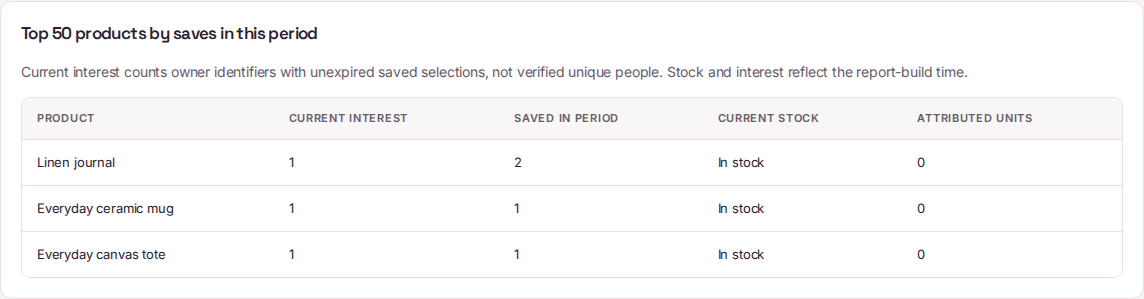
A selection purchased on multiple order lines is counted once in the funnel. The funnel is not a count of verified unique people or a list of shoppers who can receive email. Current interest, saves in the selected period and attributed paid units cover different scopes; do not divide these columns to infer a conversion rate.
Revenue and refunds
Revenue uses explicit wishlist attribution on WooCommerce paid product lines in the selected payment period. Product-line refunds are deducted. Tax and shipping are excluded. Amounts in different currencies are reported separately.
Unallocated order refunds are shown separately because there is no reliable product allocation. Fully refunded orders remain part of refund accounting when WooCommerce retains their payment date.
Demand and opportunities
The report shows the top 50 product selections by saves in the period, alongside current interest, stock status, and attributed units. Opportunity prompts highlight interested shoppers where stock is unavailable or no attributed units appear in the selected window. Treat these as review prompts, not proof that a discount will create sales.
Campaign association
Orders using a generated campaign coupon are associated with its campaign reference. Their net order totals include tax and shipping and deduct refunds. Multiple campaign coupons may be associated with the same order. Association does not prove incremental revenue or replace a controlled experiment.
Pro
Move from YITH, TI, or WPC
Discover account-owned lists, review imports, resume batches, and roll back untouched results.
Start with a preview
- Keep the source plugin’s data in the same WordPress database and back up your staging store.
- Open WishlistGenius → Settings → Migration and choose YITH, TI WooCommerce Wishlist, or WPC Smart Wishlist.
- Find source lists. Account-owned lists with an existing WordPress user are eligible.
- Select up to 25 lists, then preview the batch.
- Review ready selections and each skipped product or option before importing.
What is supported
The adapters inspect YITH Free 4.18.1-style tables, TI 2.12.1-style tables, and WPC 6.1.0-style account metadata. Simple products and supported selected variations can be imported. Missing products, unmapped guests, unsupported custom options, and unknown schemas are blocked or skipped. In 0.3.39, a TI variation whose saved parent does not match is skipped with The source variation does not belong to its saved product. Check the source selection, then create a fresh preview; the importer does not silently substitute a different product’s variation.
WPC notes and timestamps are retained when present. A historical price is only carried across when a valid currency is also available. Account ownership is never guessed from a public link or guest token.
Safe batches
Each source list imports as a private list, within the destination account’s list limit. Notification consent stays unchanged. The source data is read-only. Each preview is bound to the administrator and expires after 20 minutes. Changed source data requires a fresh preview.
A batch processes one list at a time. Resume the batch in the same browser after an interrupted request. Repeating an unchanged import returns the existing destination rather than duplicating it.
Rollback
Use the rollback action beside a successful result to remove an untouched imported list. If the shopper has edited the list, automatic rollback is blocked so those changes are not discarded. Review edited lists manually. Rollback never removes the source plugin’s records.
Customization
Make the wishlist fit your store
Style your wishlist and configure optional language, translated-product and currency integrations.
Style the save button
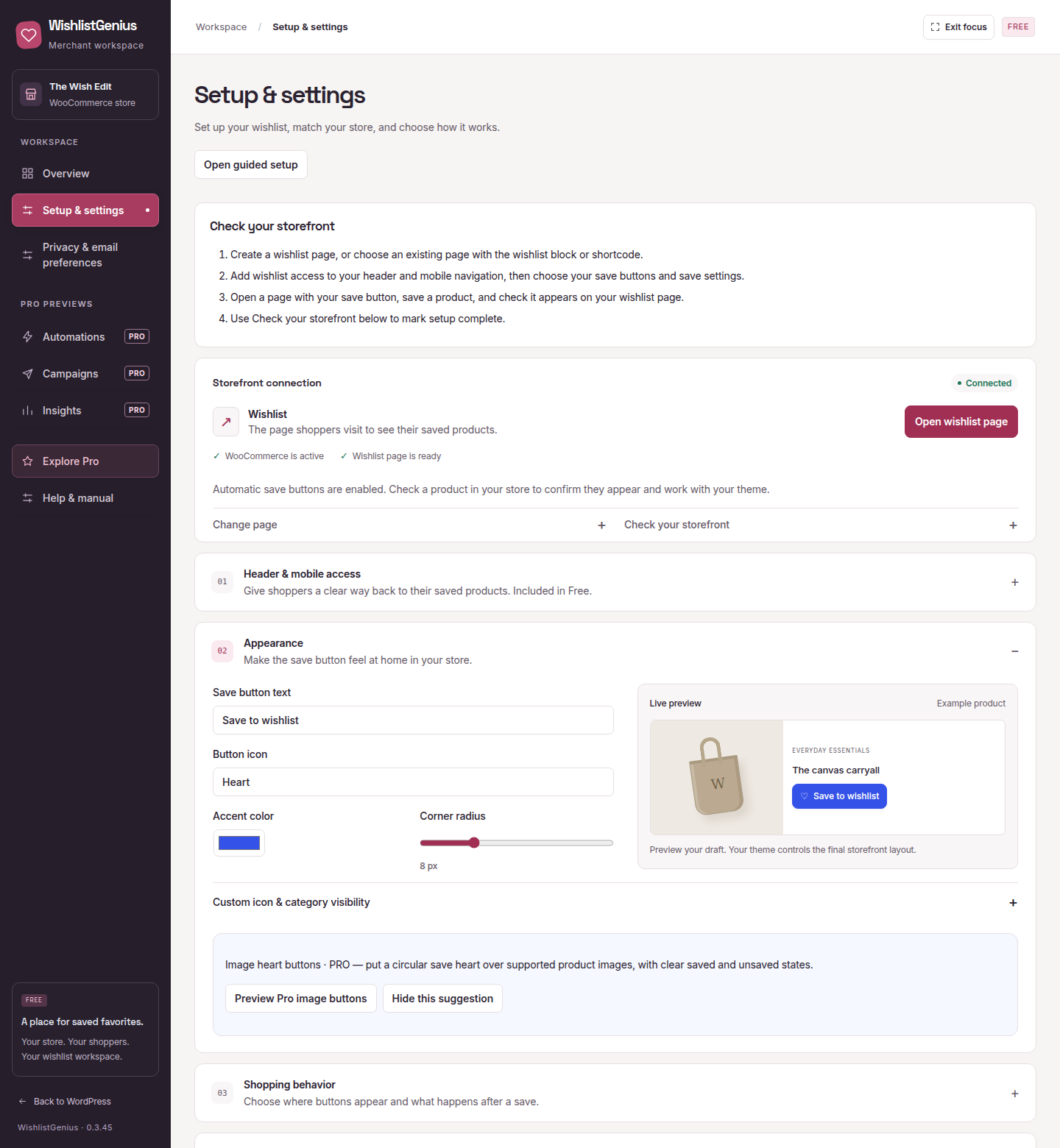
Use Setup & settings to choose the label, placement, icon, accent color, and radius. The appearance preview updates as you edit. The merchant workspace has a consistent light appearance; it does not switch with the computer’s colour setting. Focus mode and Exit focus control the surrounding WordPress navigation. Choose a custom image through the WordPress media library, or return to a built-in icon. Changes apply after saving.
Use WordPress blocks
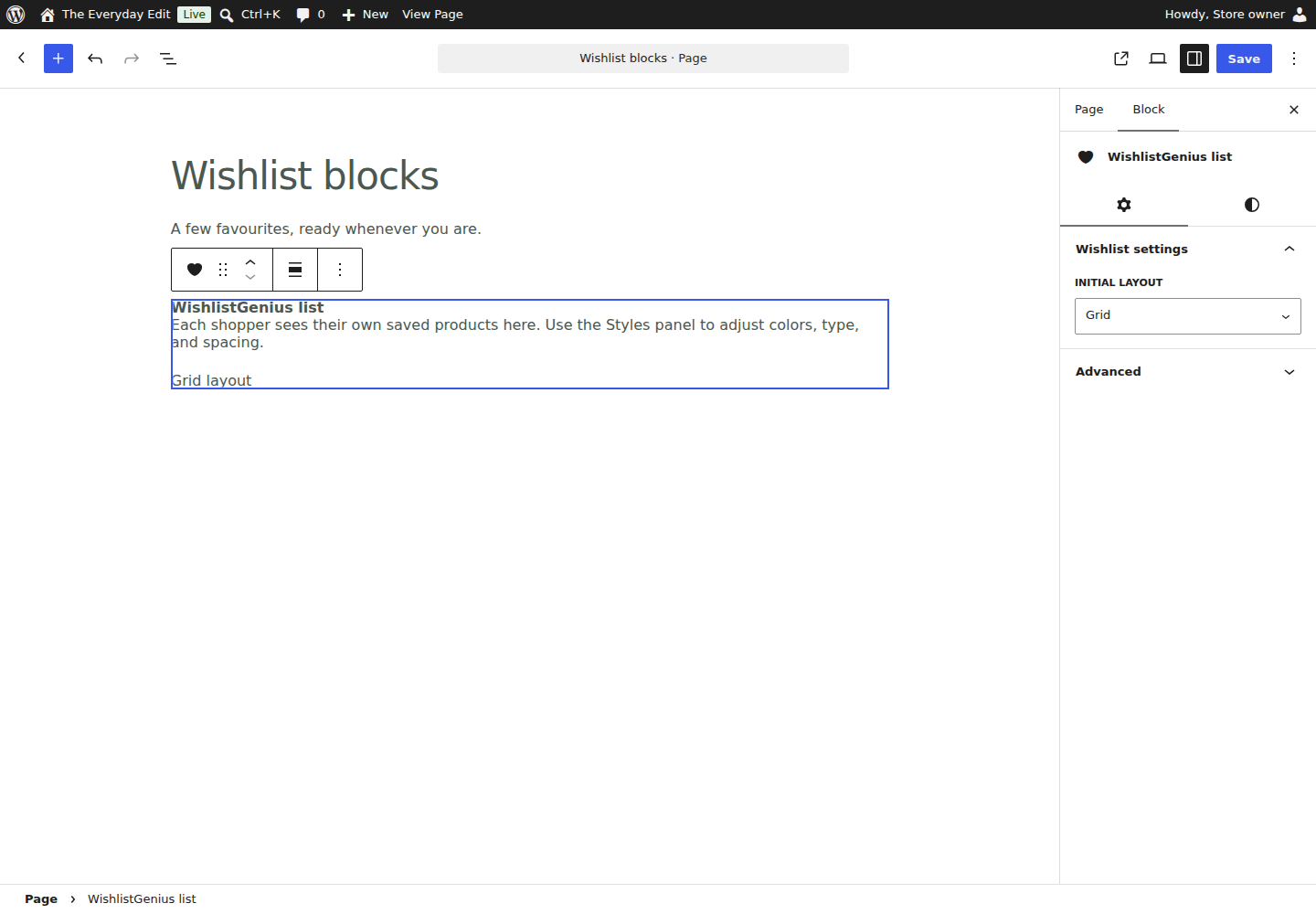
The list, button, and counter blocks support color, spacing, font size, and line height in the block editor. Button blocks have a product search control; use the current product or choose one by name. List blocks offer Initial layout → Grid or List. The editor displays a placeholder and settings, not the shopper’s live saved products. Preview the published page as a shopper to check the rendered wishlist.
The shortcodes [wishlist_genius], [wishlist_genius_button], and [wishlist_genius_counter] remain available for templates and builders.
Translate the interface
The release includes gettext catalogs and WordPress JavaScript translation registration. Translate the supplied POT with your usual translation tool and generate the matching MO and script JSON files. The main UI uses the wishlist-genius domain; the Pro activation notices use wishlist-genius-pro.
RTL styles use logical alignment and support right-to-left store layouts. Translations for every language are not included. Add and review the languages your store needs.
Theme checks
Check mobile navigation, keyboard focus, text at larger sizes, long product names, variable-product forms, block templates, and any theme-specific cart behavior. Custom themes and third-party product options may need integration work.
Product language and currency context
Enable the optional language/currency connection under Settings → Integrations after configuring your WPML/WCML or Polylang stack. New saves retain their language and currency context, map supported translated product identities and display the appropriate translation. Notification price comparisons stay within the same supported currency. Missing translation or conversion support fails safely rather than showing a relabeled amount. Foreign-currency price alerts stay unavailable with WooCommerce tax calculation enabled, avoiding a comparison across different shopper and background-job tax bases. Language and cart mapping remain separate. Provide and review your own product and message-template translations. Enabling this connection does not migrate existing saved rows. Polylang mapping does not replace a WooCommerce translation extension for stock and tax synchronization; verify the complete vendor stack on staging.
PRO APPEARANCE
Put a wishlist heart on the product image
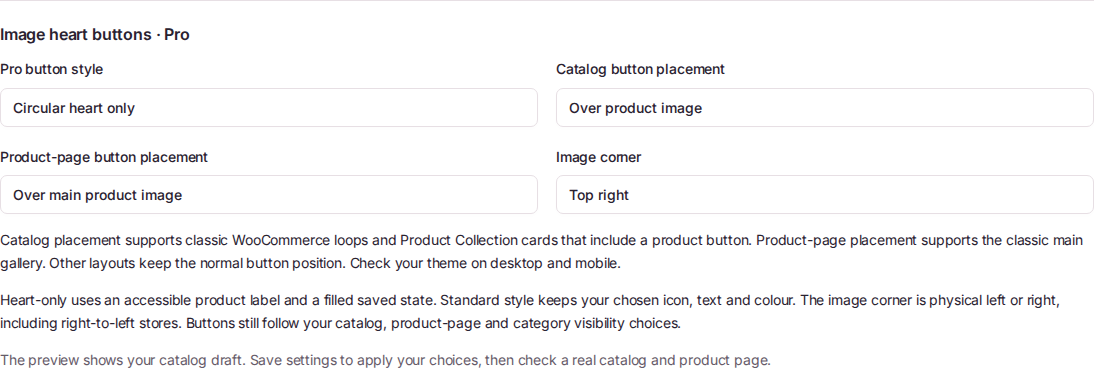
With matching Free and Pro 0.3.45 active and the licence activated, open the plugin’s storefront appearance settings. Choose the standard icon-and-text button or a heart-only button. Choose image placement separately for product catalogs and individual product pages, then select the top-right or top-left corner. Save before checking the storefront. These options start off, so updating preserves your current design.
The outlined and filled hearts distinguish unsaved and saved products. Product names remain available to assistive technology, and keyboard focus remains visible. An image heart uses the same save and cart rules as the standard button. Chosen variations are retained; required options must be selected before adding a variable product to the cart.
Image placement supports classic WooCommerce catalogs, Product Collection cards that include a WooCommerce product-button block, and the classic main product gallery. Image-only block cards, custom block galleries and manually placed buttons keep their normal placement. If a theme uses an unsupported layout, the button keeps its normal position. Test your theme, image zoom, sliders, mobile layout and dynamically loaded products on staging.
Free keeps its existing icon, label, color, radius and button-position controls. Its dismissible Pro preview is informational; the working image-heart feature is supplied by the separate Pro add-on. Deactivating Pro restores standard Free buttons and retains wishlist data.
Help
Find the cause, then fix it
Resolve missing buttons, session issues, stalled notifications, import errors, and incomplete reports.
The save button is missing
Check that Free is active, catalog or product buttons are enabled, the chosen position exists in your theme, and the product is in an allowed category. Clear generated page caches after changing settings. Test with a standard WooCommerce product before adding custom options.
A selection cannot be saved or added to cart
Since 0.3.42, a temporary loading label means the save controls are not ready yet. If it persists, check that the plugin scripts load successfully and test with script-delay or optimization settings disabled on staging.
To save a specific variation or add a variable product to the cart, select its required options first. Saving the parent product for later does not require selecting a variation. Check product publication, stock, purchase restrictions, and WooCommerce validation. The plugin preserves error details instead of silently substituting another selection. A changed item may require reopening its editor before saving.
Notifications are waiting
Review sending controls in Automations, the shopper’s notification choices, and waiting or held messages in Message activity. Check Overview for scheduler warnings. Check that the product still qualifies and the shopper still has it saved. Daily rate limits and held unknown outcomes can intentionally delay or prevent sending. Use Message activity → Send a test email, or Customer email setup → Delivery checks & shopper consent → Send a test to my account, to check delivery to your own WordPress profile email. Configure an SMTP or email delivery plugin in that plugin’s settings. Transport acceptance is separate from confirming I received this test; neither a successful preview nor a saved workflow proves inbox delivery.
Migration or reports stop
Resume a report to continue from the last completed paid-order page. Use a shorter date range if the activity cohort exceeds the report limit. For imports, review each result, preview changed or expired source lists again, and confirm the destination has capacity.
Send a useful request
Include plugin, WordPress, WooCommerce, PHP, and theme versions; the exact steps; what you expected; and what happened instead. Exclude passwords, license keys, customer data, and private sharing links. Submit the Support form and keep the private receipt URL.
A Pro update is unavailable
Keep your current plugin installed. Download the matching Pro package from your customer account, or contact support if you need help with access. Pro installers are not available on the public Downloads page. Check the WordPress, WooCommerce, PHP and Free requirements before updating, and never bypass a failed package verification.
Retaining or removing stored data
Ordinary deactivation or plugin deletion retains wishlist data and settings. Before moving a Pro licence to another site, open Licence & updates → Advanced: staging and connection management → Release this site and wait for the confirmed release. Forget local credentials locks Pro locally but does not release the remote site slot. Neither action deletes saved wishlists.
For deliberate data removal, an administrator must set WG_DELETE_DATA_ON_UNINSTALL to boolean true in the site’s WordPress configuration before uninstalling Free. This removes WishlistGenius tables, settings, stored previews, generated coupons, scheduled work and local connection credentials. It keeps WooCommerce products, orders and the wishlist page. Back up any data you intend to retain before choosing this option. Uninstall does not contact the licence service or release a remote site slot.
Historical staging proofs stored only in an external object cache retain their existing five-minute expiry. Store backups and any other cached exports follow the store’s own retention and cache controls; do not describe uninstall as deleting copies outside the plugin’s control.
Get help safely
Contact WishlistGenius support. Include plugin, WordPress, WooCommerce and PHP versions, the exact steps and a redacted screenshot. Never post passwords, private licence links, activation tokens or shopper data in a public forum.
Current guides: wishlistgenius.com/docs/. The online edition may be updated after this PDF release.